For over 15 years, Markswebb researchers have been finding, describing, and fixing UX problems in digital services. We’ve seen thousands of interfaces and finally decided to formalize our accumulated knowledge as a classification and knowledge base for everyone building and improving mobile apps, web versions, sites, and personal accounts.
This landing page gathers all project artefacts to help you sharpen the skill of identifying and describing UX problems — so research insights turn into real, useful changes for people and for business.
Using the Markswebb classification and other UX Problems Guide materials helps UX researchers, designers, CX specialists, and product teams get to the root of interface issues and, as a result, find better solutions. It’s also a source of inspiration, with examples collected from 80+ digital services and hundreds of user scenarios. If you stitch together all the visualizations of problems and solutions we found, you’d get over 24 hours of video—that’s how much we analyzed to select only the most important and valuable.
The classification broadens the set of criteria UX researchers and product managers can use to evaluate an interface. Every new class you study reveals issues that would otherwise go unnoticed — and unfixed.
In addition to the classification, we suggest reviewing a statistical report on how frequently UX problems appear across five industries—and using Markswebb’s industry checklists for independent audits.
A knowledge base featuring real examples of UX problems from dozens of digital services in different countries. Each example is illustrated by a screenshot or screencast, described in English, and paired with an implementation from another service where this UX problem does not occur.
Open in NotionA statistical analysis of 363 UX problems from 89 apps and websites that reveals cross-industry patterns and industry-specific traits. Teams can benchmark against competitors, find quick wins, and plan improvements based on data, not opinions.
Download PDFFinancial services, travel, e-commerce, education, content platforms: five industry-specific checklists with key questions for assessing digital experience. A simple, practical tool for evaluating products with the specifics of each industry in mind.
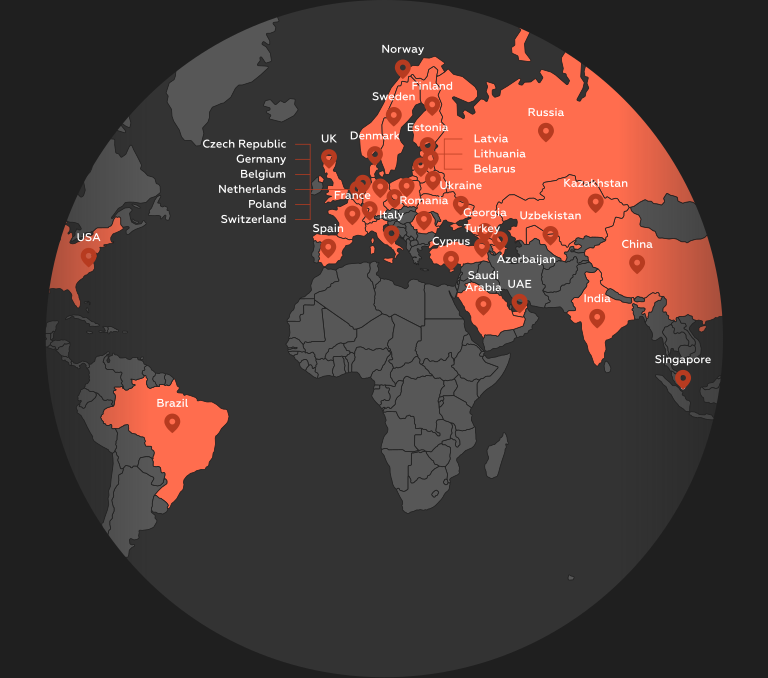
Download PDFThe classification is based on Markswebb UX researchers’ years of work analyzing thousands of interfaces. As examples, we selected 89 services across 7 industries, including fintech, foodtech, e-commerce, transportation, education, rentals, and government platforms. We excluded global tech giants, very small local services, and the gaming industry. Games weren’t considered because their core goal—prolonged engagement—differs fundamentally from services focused on efficiency.
A UX problem is any situation that causes confusion or difficulty for users and prevents them from completing tasks confidently and efficiently. It’s not only about design flaws—it’s about their impact on the user.
This differs from marketing problems—such as irrelevant offers, a mismatched audience, or unclear value.
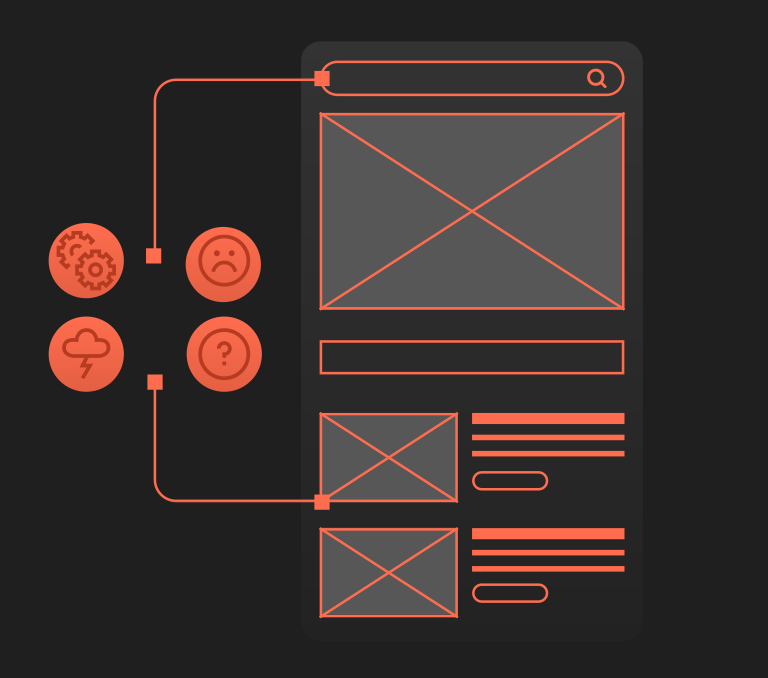
It’s important to describe the problem through real user feelings and experience, not through interface behavior. For example, «The button is too small» or «There are too few photos on the product page» are not UX problems, because they’re not tied to user tasks or perception.
But a wording like «The user doesn’t notice the payment confirmation button due to its small size and weak visual emphasis and therefore spends more time scanning the screen for actions» is a UX problem.
It’s equally important to justify why the problem truly matters. Ask:
These answers help you formulate the problem correctly and prove its significance.
Once problems are defined, they should be ranked by severity—the degree of impact on the user experience. The more critical the issue, the higher the risk users will feel frustrated, fail to reach their goals, and stop using the service. Accurate assessment helps teams focus on what matters.
and 100 more companies making innovative gidital products
We respond to all messages as soon as possible.
We’ve just sent the file to your inbox. Use it to benchmark your product, uncover blind spots, and prioritize what matters.
Didn’t receive it? Check your spam folder or contact us at [email protected]
This is the most frequent type of UX problems across the services we studied, covering 18% of all the discovered problems. Class 1 deals with a fundamental mismatch between the service and the user’s task, and it’s important to clearly distinguish it from Class 2 and 3, which focus on navigational issues: the user’s goal is achievable, but the path to it is unclear or too long.
1.1. The necessary function or information is fundamentally missing in the service.
The user wants to perform a legitimate task, but the system offers no built-in way to do so.
If the intent falls outside the expected scope of the service, it is not a UX problem but rather a matter of product strategy or positioning, for example, asking a banking app to trade crypto when it doesn’t offer such features. A service is considered adapted when the user can complete their goal end-to-end, in the context and constraints they actually have, without resorting to workarounds or external channels.
This subclass covers situations in which a user attempts to perform a legitimate task, a task which is clearly within the product’s domain and promise, yet the system provides no built-in way to do so. The capability is expected to exist, as the same task can typically be completed in an offline setting or through a competitor’s service, but the digital product lacks it.
Interfaces that exhibit this problem reflect having an overly narrow view of real-world usage patterns: they support the “happy path” but fail to accommodate the full spectrum of contexts in which users actually operate.
Best Practice
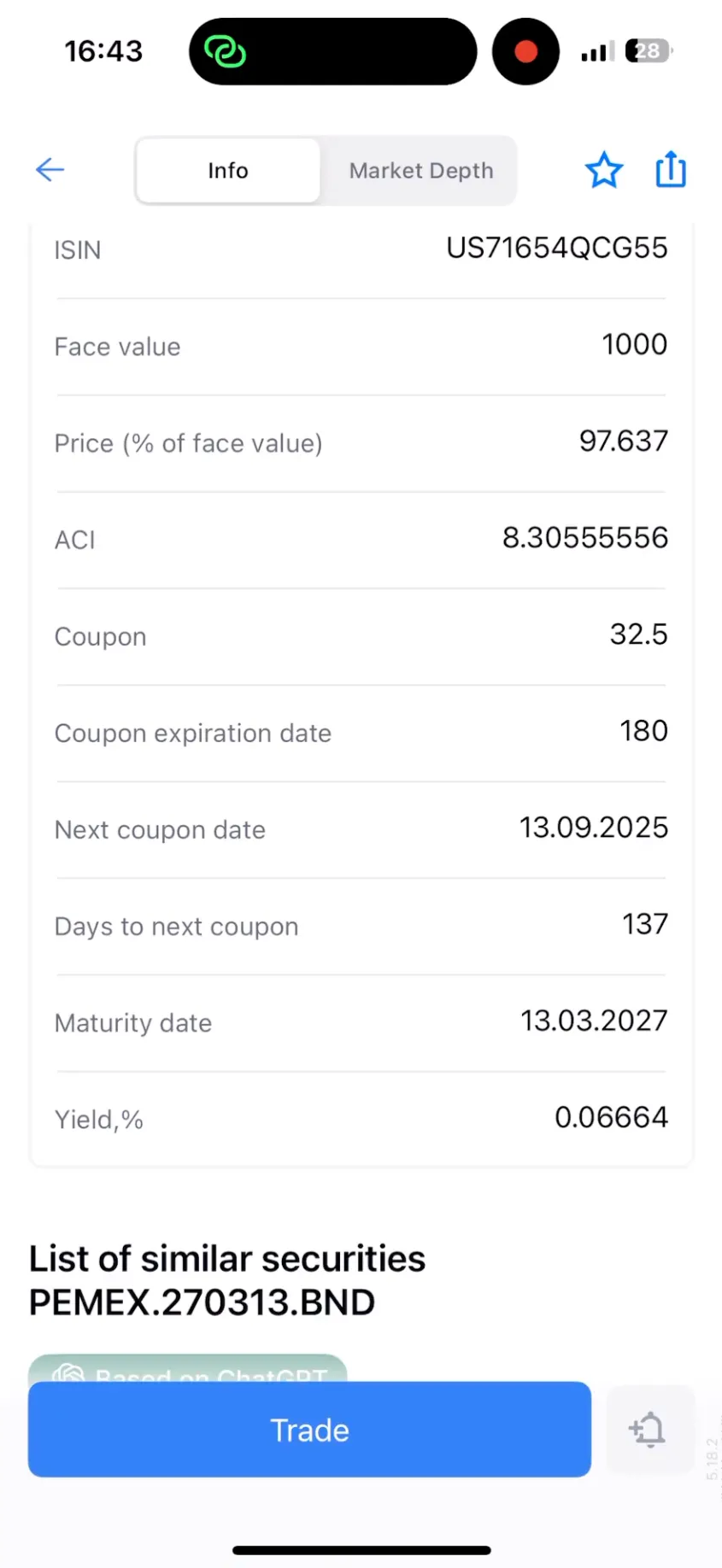
In FREEDOM24, the bond asset card provides an “Info” section with comprehensive coupon details, including the ACI (Accrued Coupon Interest), coupon rate, coupon expiration period, next coupon date, and the number of days until that payment. This gives investors a clear and immediate overview of their expected income stream, allowing for effective financial planning.
Screenshot

1.2. Technical errors disrupt task completion.
A non-functioning element or action has the same outcome for the user as a missing one — task completion becomes impossible. This subclass reflects situations where the user takes a valid and expected action — such as clicking a button or submitting a form — but nothing happens due to a backend or functional failure.
Unlike cognitive issues, which arise from the user's perception, these problems stem from system-side technical faults.
This type of problem typically occurs in data-driven, dynamic services that depend heavily on real-time server responsiveness, such as e-learning platforms, booking systems, and e-commerce catalogs. These services involve constantly loading of content, and any technical failure or lag in server response can lead to interface unresponsiveness.
Users feel blocked and helpless, especially if no error is shown.
After adding dishes to the cart, the user proceeds to the checkout page, where they are prompted to select a payment method. However, the payment method selection button does not respond, leaving the user unsure how to complete their order. The lack of responsiveness prevents the user from successfully placing their first order.
The user can complete their task by navigating to the profile section and adding a payment method there, but this requires extra effort to discover this workaround.
Best Practice
On Wolt, users can seamlessly navigate to the checkout page, where they find all the essential information for completing their order conveniently displayed on a single screen. This includes selecting their preferred payment method. The user can add a new card within one cohesive user flow.
Skillshare (Switch on subtitles in full screen mode)
Domestika (Find marketing courses with subtitles)
1.3. The task is not supported, though it can be addressed through an unsuitable function.
This subclass describes situations where a user wants to complete a legitimate and contextually appropriate task, but the service provides no dedicated way to complete it. While the system does not fully block the user, it also fails to support the task directly: users can address it only through workarounds. Only the most advanced or experienced users are likely to succeed, using trial-and-error method.
This type of UX problems does not stem from navigation difficulties, it is rooted in lack of functional pathways or support the user task. Such problems typically occur in services where user flows are tightly scripted or designed around ideal use cases.
In a banking app, there’s no option to download or share a payment receipt. Users can reach their goal only by taking a screenshot of a receipt.
As a result, users feel unsupported when their needs fall slightly outside the predefined paths:
— “It felt like I was solving a puzzle, not using a service.”
— “I feel like I’m hacking the system just to get basic things done.”
Screenshot

Best Practiсe
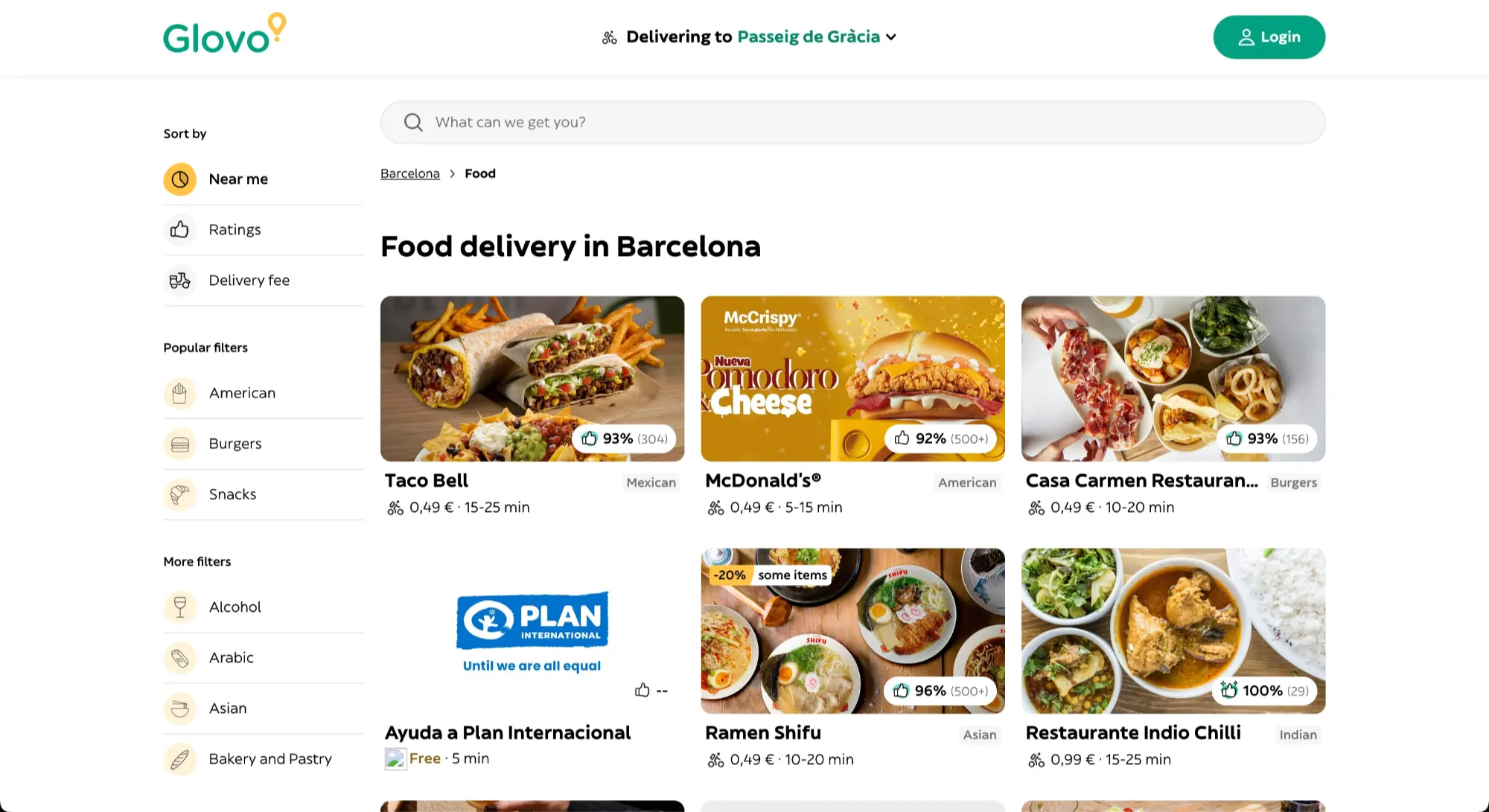
On Uber Eats website users can apply various types of sort to the catalog, including sort by delivery time. This UX decision allows users to easily find the quickest delivery and choose a restaurant that meets their time constraints.

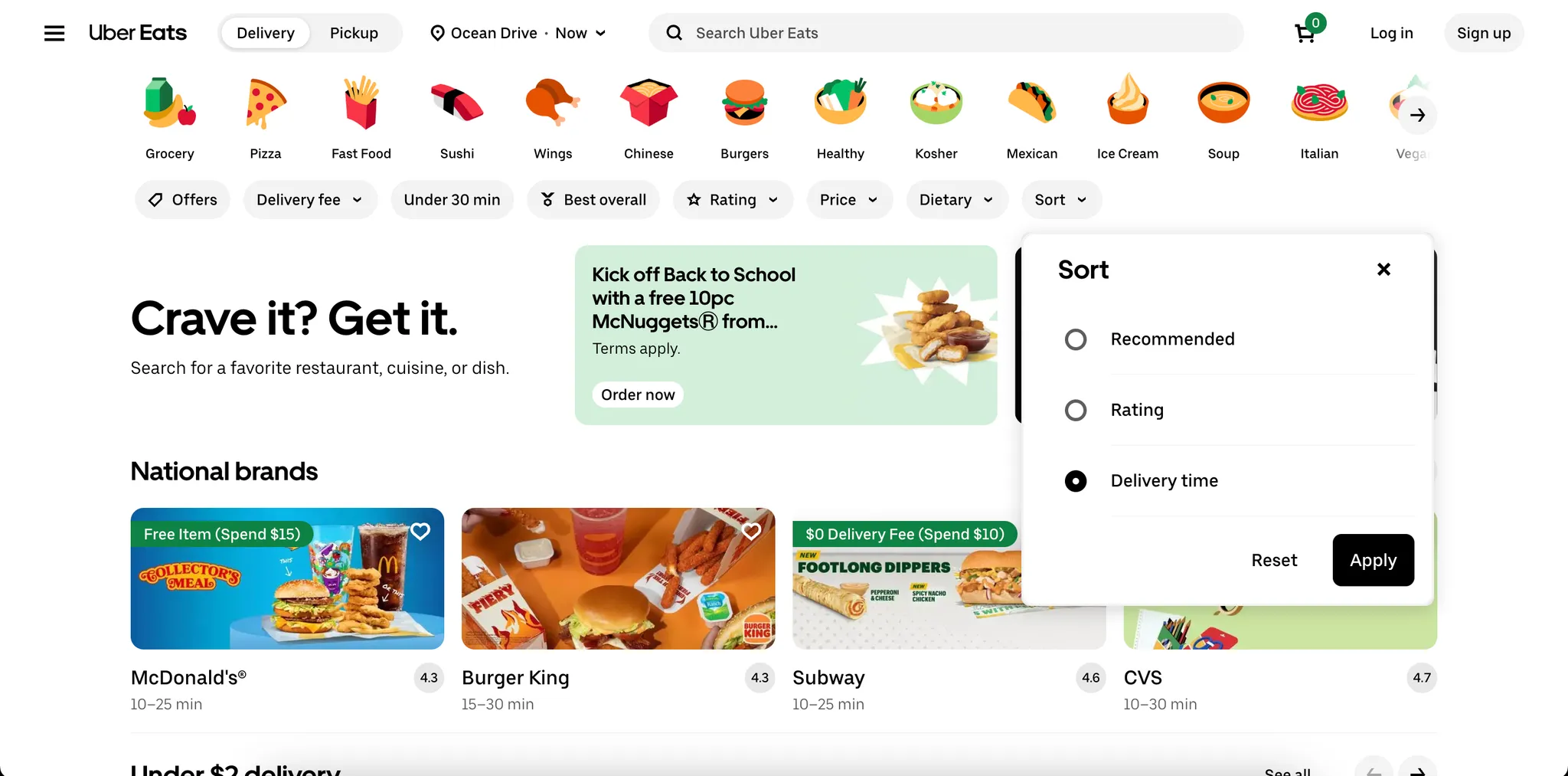
Glovo (Change delivery address details)
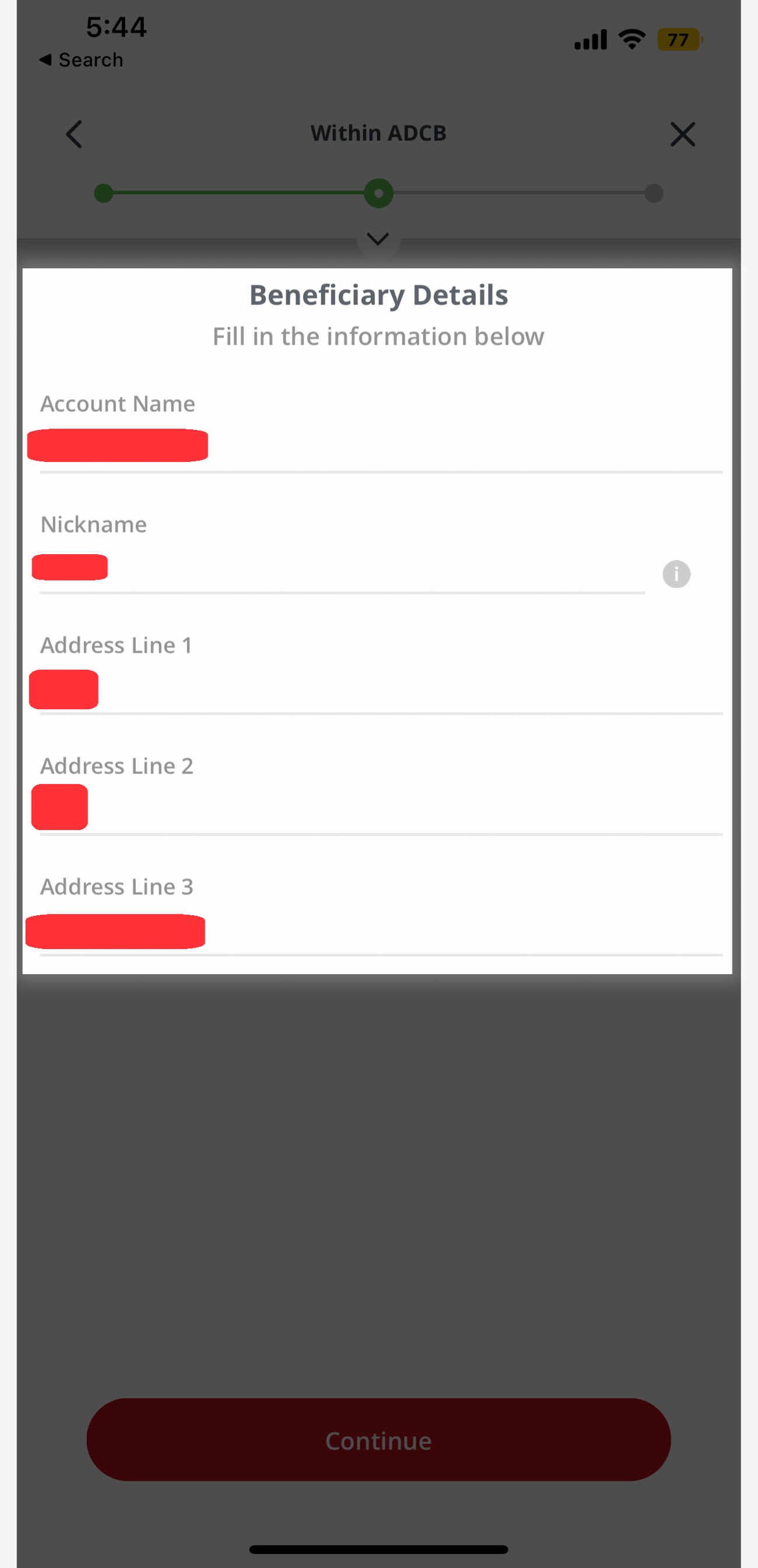
1.4. The service requires data or conditions from the user that they cannot provide or meet at that moment.
This subclass includes situations where the service blocks task completion by requesting specific data or contextual conditions that users may not currently possess or be able to meet. These requirements may be technically or procedurally justified in the name of security and compliance, but from a UX perspective, they become problematic when they create a hard block with no alternative path.
We include here only rigid requirements that could reasonably be skipped or handled differently, especially when they are not legally mandated for all users, yet the service enforces them. This subclass is rare and typically occurs in regulated industries such as banking, government, or identity-related services. It typically reflects an over-securitized design, where the system prioritizes compliance and risk avoidance over user accessibility.
This design creates a conflict between security and access: while the intent is to protect the service and its users, the result is that users are locked out in critical moments.
Screenshots


Best Practice
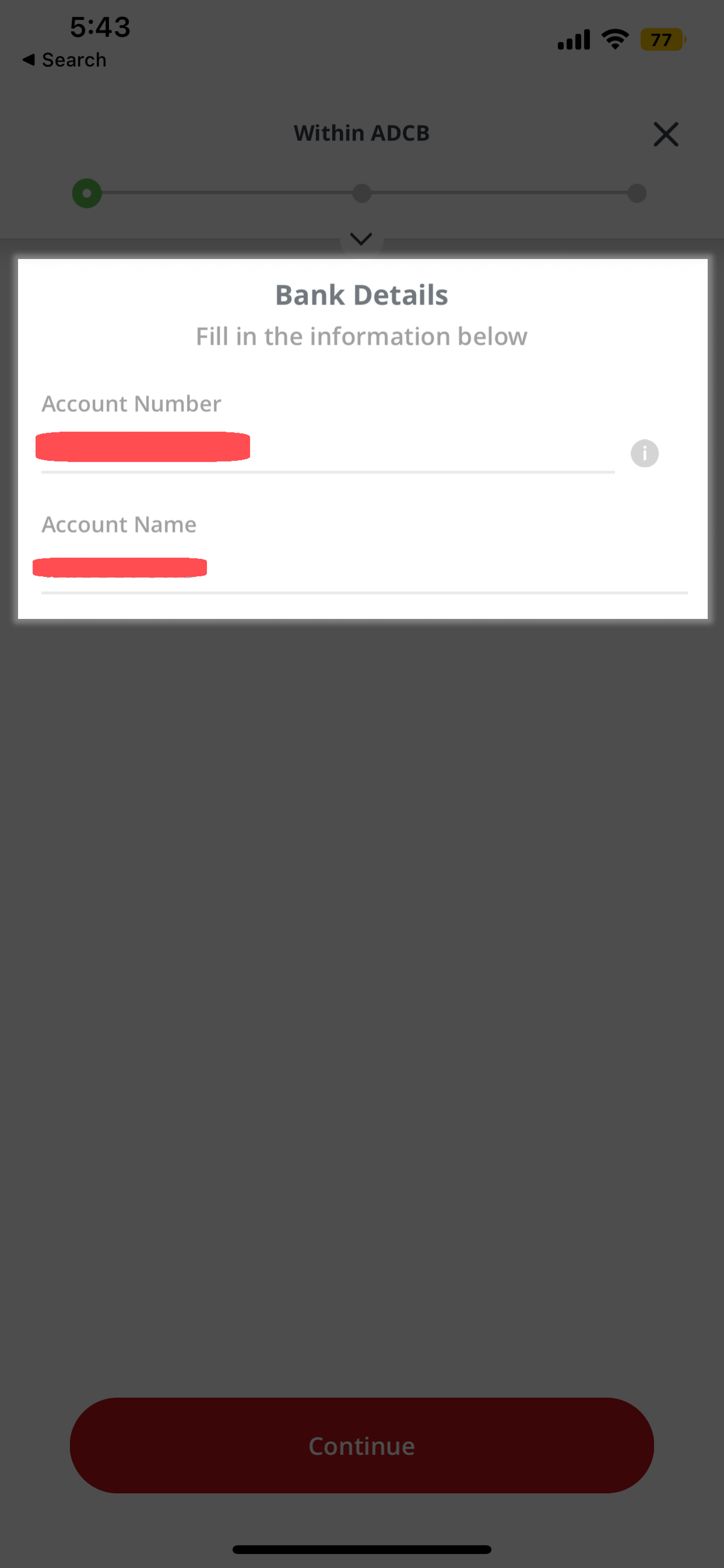
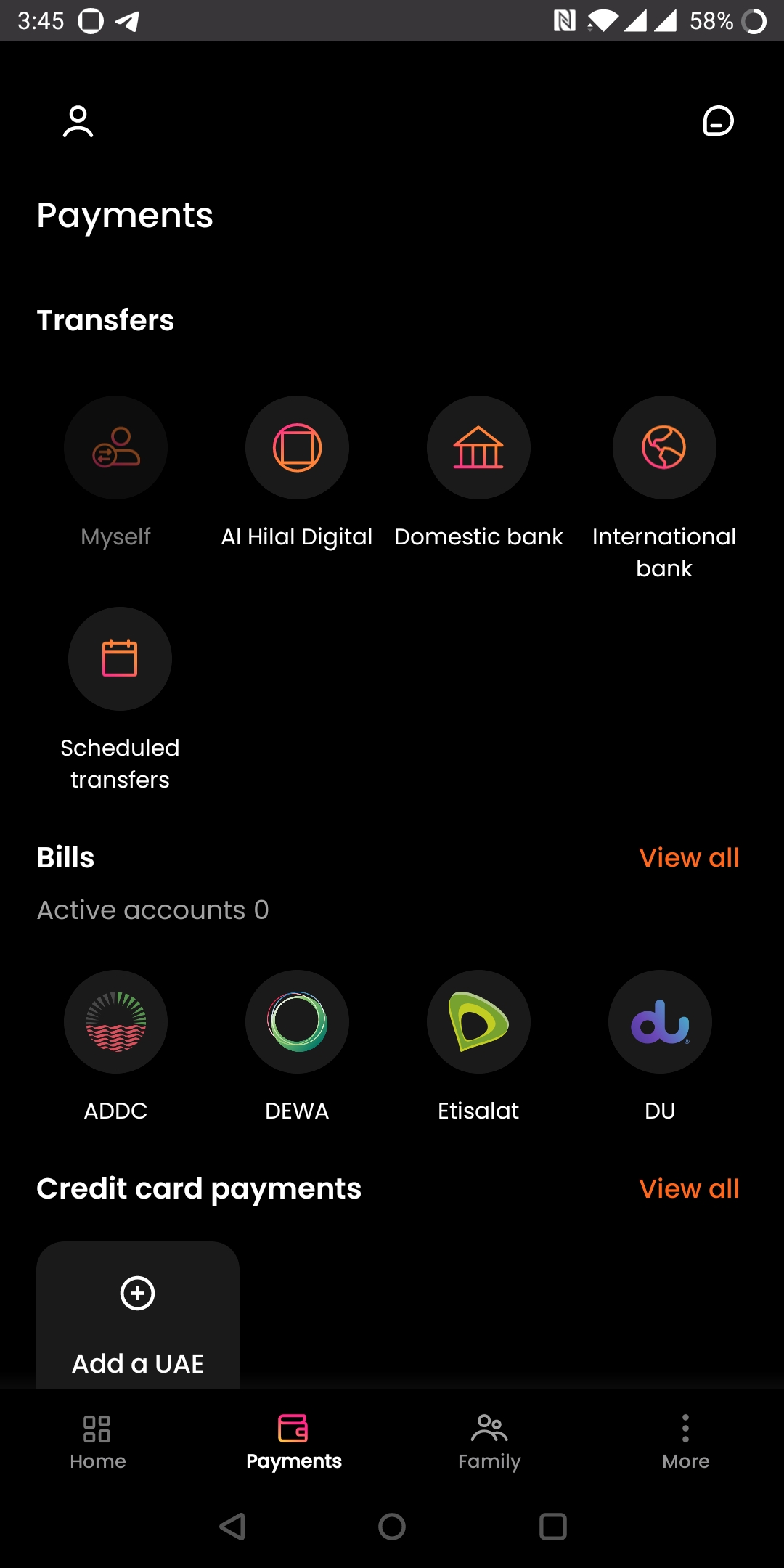
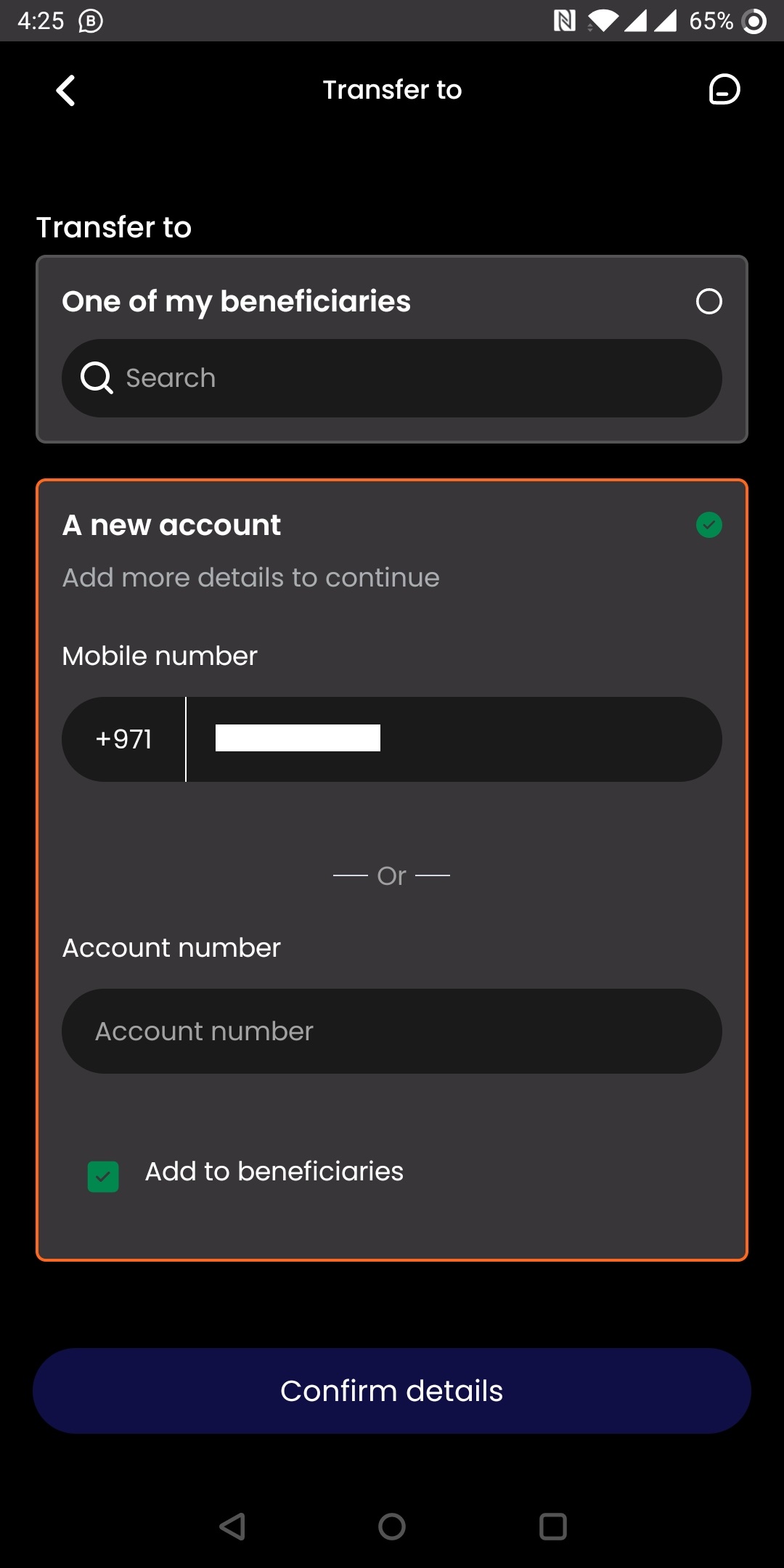
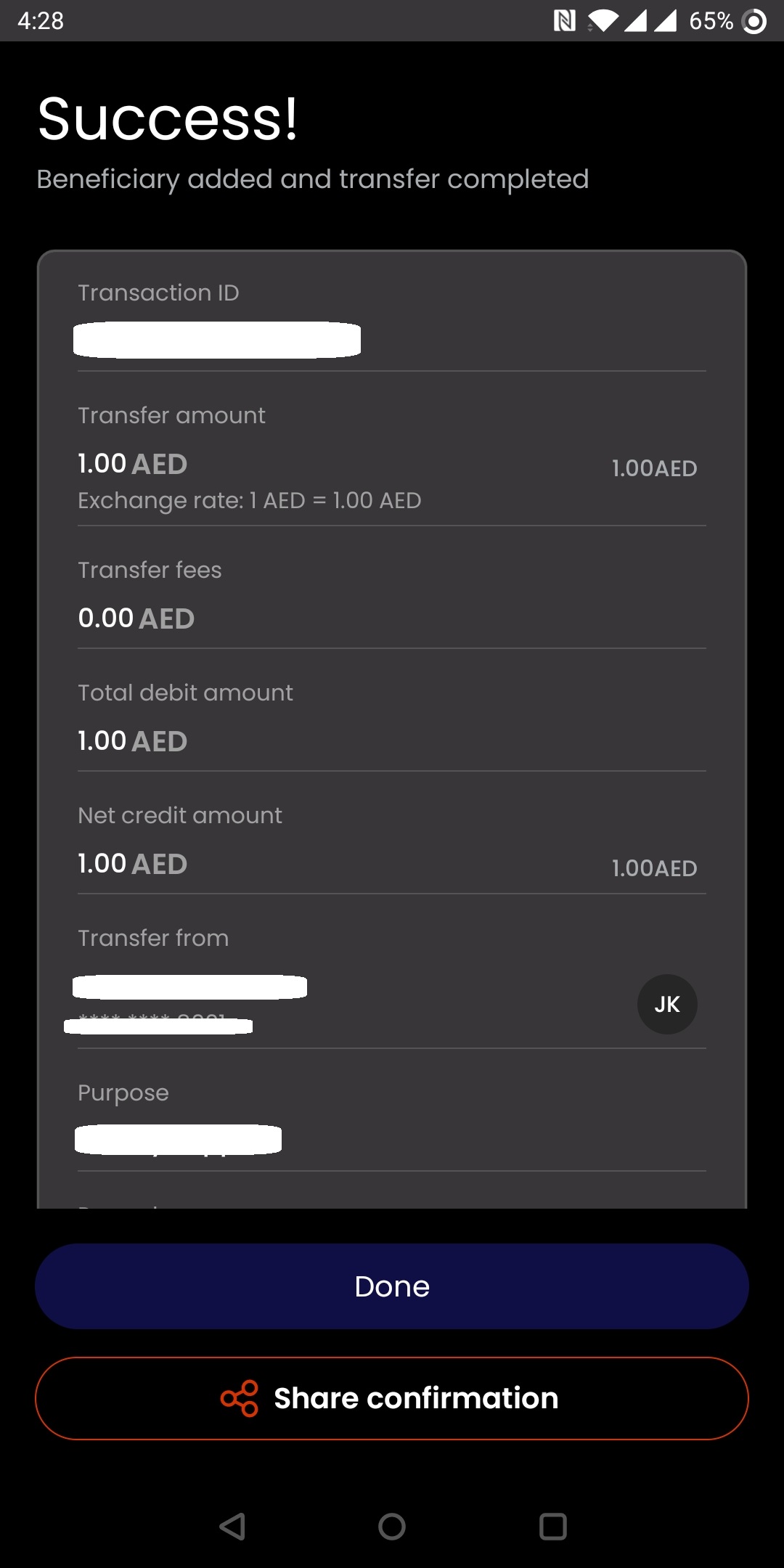
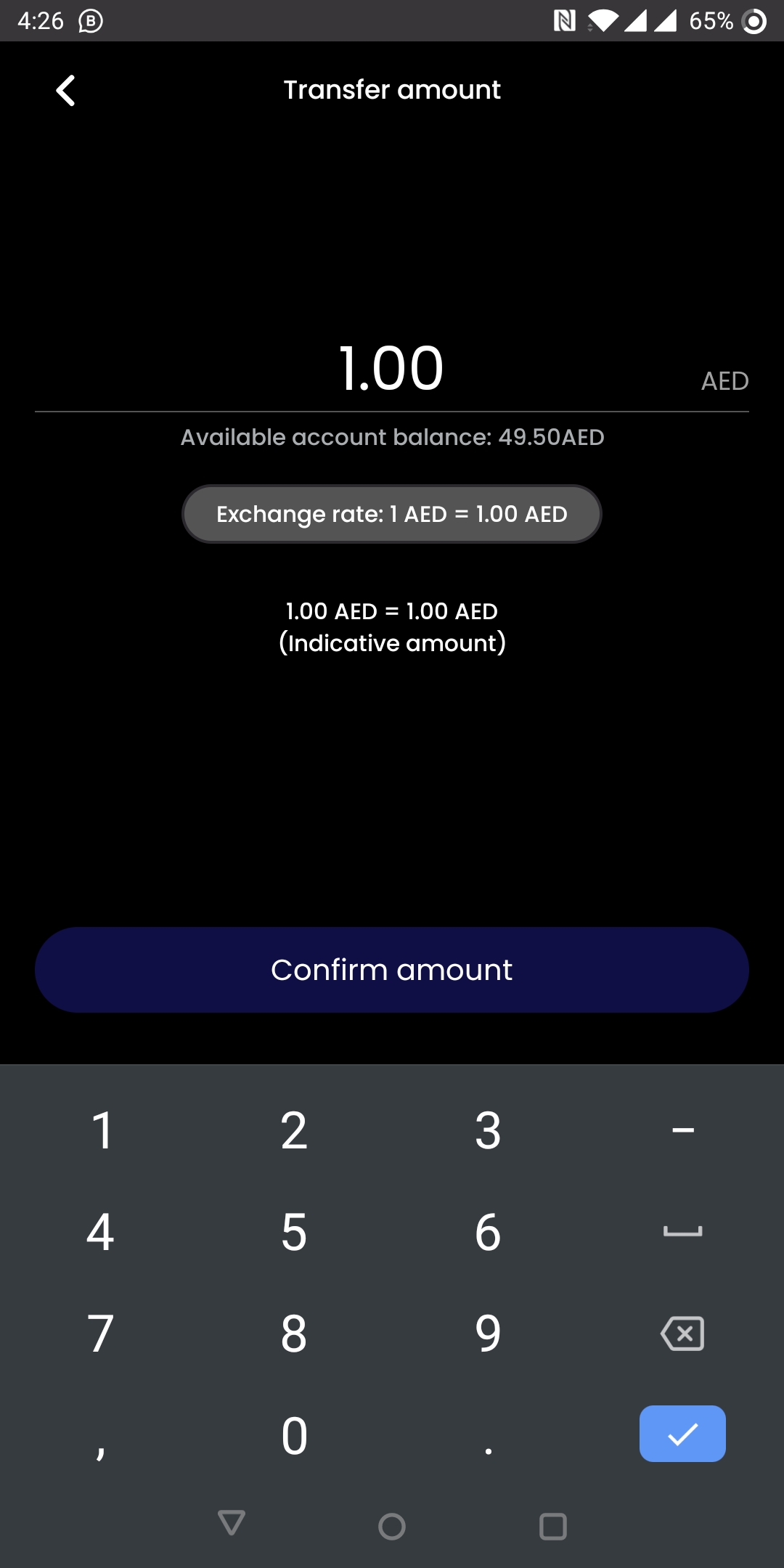
Al Hilal Bank presents the best solution for within-bank beneficiary setup – the function is located right within transfer form and is possible to add a beneficiary using only the recipient’s mobile number. This approach makes the process smooth and fast, eliminating the need to know or manually input an account number. In case the user doesn’t want to add a beneficiary by mobile number, there is still an option to do so using the account number. Account number or phone number is the only required credential, which makes beneficiary adding very hassle-free and fast.


2.1. The service does not offer an obvious path to the needed function or information
This subclass refers to situations where users struggle to find a function or piece of information because there is no clearly suggested or intuitive path to it. This often occurs when the task does not have a common industry UI pattern.
The issue is not that the function is in the “wrong” place, but that users don’t know where to begin their search. It’s a breakdown of discoverability — the service fails to surface the needed option through labeling, navigation hierarchy, or contextual guidance.
This issue is commonly found in financial services, travel and transportation apps, e-commerce platforms, and classifieds.
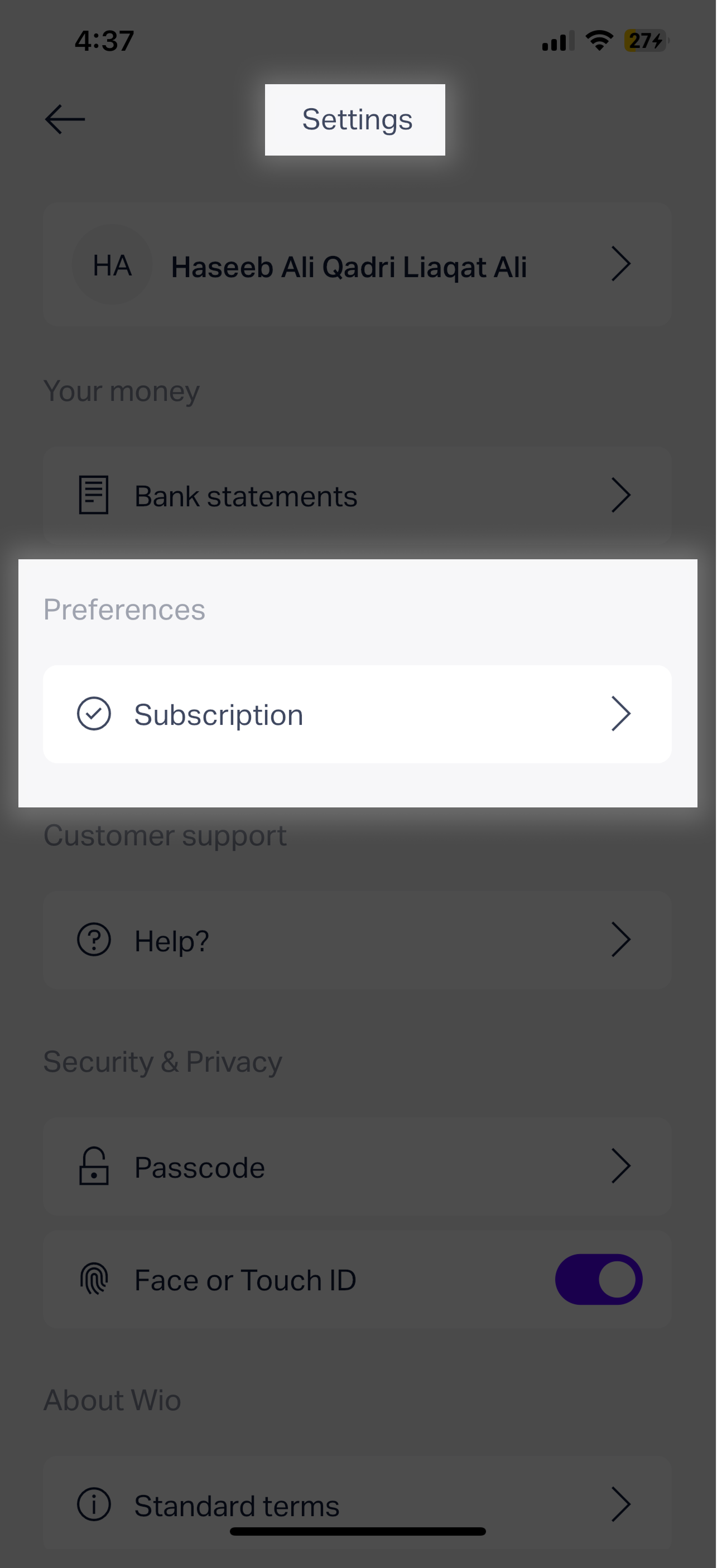
Following standard industry logic, they reasonably search for this information in two primary locations: their account/card details (where pricing applies) or their client profile (where the service agreement is managed).
However, the WIO app places this essential tariff information exclusively within the Settings menu, under a sub-section for Subscription details. This structure completely disconnects the information from the user's mental model and the contextual points where questions about fees arise. Consequently, users experience significant search friction, often failing to find the details independently. This forces them to either abandon their inquiry or contact support, directly increasing the bank's operational costs while simultaneously degrading the customer experience and eroding trust in the platform's transparency.
Screenshot

Best Practice
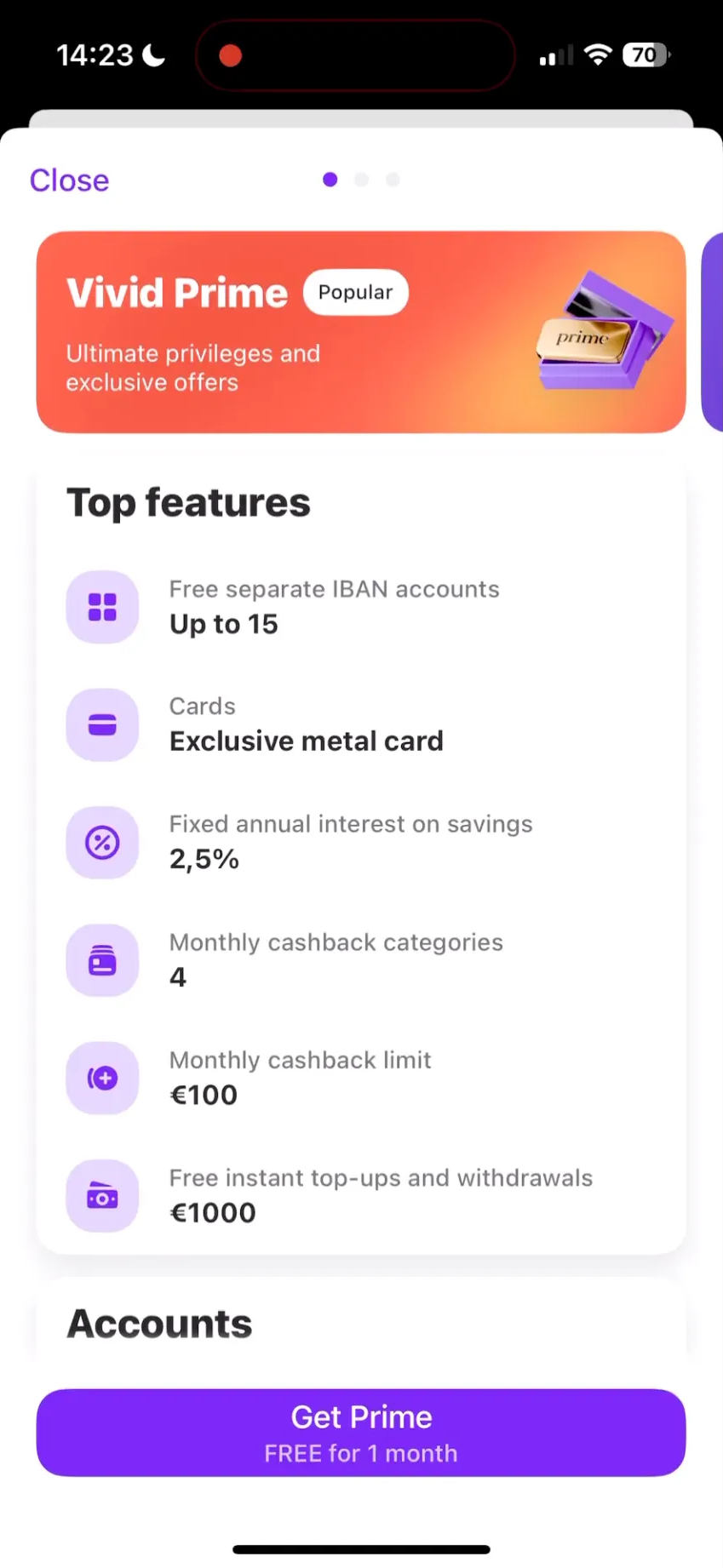
In Vivid Money, users can view the name of their current plan directly in their profile and easily access a carousel of all available plans by tapping "Upgrade your plan" or "Plans." This provides a clear and immediate comparison of features, allowing for straightforward management and informed decisions about their subscription.

2.2. The needed function/information is not present at the expected place
Contrary to 2.1, this subclass includes situations where the user knows where they expect to find a function or piece of information, but the interface breaks from convention or logical structure, and the needed element is not located where users would naturally look for it. These expectations are shaped by common UI design standards, patterns seen in similar services, or established norms within the domain (e.g., finding logout in profile settings, filters above a search result).
The issue creates a sense of disorientation, as users confidently look in a familiar or logical location and fail to find what they need. Some may abandon the task, assume the feature doesn’t exist, or perform incorrect actions.
This problem stems from deviating from common UI design patterns and is frequently observed in financial apps, e-commerce services, utilities, and educational platforms, particularly during tasks involving account and transaction management, and transactions.
Best Practice
On DoorDash users can effortlessly access their cart at any time. When a dish is added and the user leaves a restaurant page, the cart prominently appears at the bottom of the main page. Additionally, there is a prominent anchor point for accessing the cart in the upper right corner. This UX design ensures that users can easily access their cart and proceed to place an order.
Zoom (The user needs to change the language of the Zoom MacOS desktop app.)
Telegram (iOS) (The user wants to log out of their Telegram account)
2.3. Priorities in the interface are misplaced. Minor elements are highlighted while primary elements are not visible.
This subclass includes situations where the visual hierarchy of the interface does not reflect the actual priorities of the user. The user comes to the interface with a clear goal — for example, to select a suitable course, check flight details, or confirm the contents of a shopping cart — but the interface draws attention to secondary elements instead, while more important content remains hidden and de-emphasized.
Such mismatches are usually caused by poor layout decisions, overly aggressive promotion of non-essential features, or lack of visual cues guiding the user to the core action or information. Users are forced to spend extra time searching and interpreting the interface.
This problem is frequently observed in services that involve selecting, managing, or confirming content or actions, such as education, travel, e-commerce, finance, or communication.
The impact is particularly frustrating when the user is engaged in task-critical actions like booking, purchasing, or confirming content — moments where clarity and speed are most expected and appreciated.
Best Practice
On the Uber Eats app, users are clearly shown the contents of their cart before proceeding to checkout. Additionally, the order overview provides a final summary, allowing users to review their selections and make any necessary adjustments before placing the order. This ensures accuracy and gives users confidence in their purchase, enhancing the overall ordering experience.
2.4. The naming of menu sections or links to functions does not clearly convey their purpose.
This subclass describes situations where the labels or headings used in menus and navigation links fail to communicate what function or content they lead to, making it harder for users to find what they are looking for. Unlike issues related to unclear instructions or terminology during a task (subclass 11.1-11.3), this problem affects navigational understanding — the ability to locate and access functions or information.
The issue arises when:
This issue frequently occurs in e-commerce, travel, and media platforms, where navigation to key sections like saved items, support, or personal settings is obscured by vague or non-standard naming.
Best Practice
On Spotify, users have an unified Account section where all account-related information is conveniently gathered in one place. By tapping on the Account section, users can easily access and manage their account details, including linked email addresses. This centralized approach simplifies navigation, allowing users to quickly find and update their account settings, enhancing their overall experience on the platform.
3.1. The service requests unnecessary information from the user during operations.
This UX problem arises when a system asks the user to manually re-enter information that it already knows or could easily retrieve. It creates a frustrating sense that the system doesn’t “remember,” and that the user is doing work the interface should be handling:
–“Didn’t I already tell it that?”These situations typically occur in services that offer user accounts, where data has already been collected — during registration, onboarding, or previous interactions — but is not reused effectively at later stages. For example, a user may enter their delivery address during registration, only to be asked to type it again during checkout. At its core, this subclass reflects a failure in the efficient re-use of system memory and personalization.
This class of problems also includes cases where the service asks for information that could be automatically derived from metadata. For instance, prompting the user to manually select the type of payment card (Visa, MasterCard, etc.) during input is redundant, the system should recognize the card type from the card number itself, as this is embedded in the numeric structure.
Even if the user eventually completes the task, they are often left with a sense of irrationality, as if the interface is not helping them, but passively obstructing their progress. The overall impression is of a system that ignores the user’s effort and the data it already holds.
Best Practice
With the Octopus app, users can easily access without the need for their login credentials. The app does not require any login credentials when entering bills section. This user-friendly design allows immediate access to their bills, making it simple and convenient to view and pay them instantly.
3.2. Too many navigational actions (clicks, scrolls) are needed to reach the desired function/information.
This problem occurs in long scenarios with multiple steps or on complex screens that contain a lot of information and functions. It embraces navigational problems that may happen either within a single screen, for example, when users have to scroll extensively to find the "Next" button, or across multiple screens, where users must click or tap through too many elements to access the desired function or information.
How do we distinguish extra actions from essential ones? Actions are considered unnecessary when they are purely navigational, could have been avoided or shortened, and break the user’s mental model of how the interface should behave. Importantly, this subclass does not refer to situations where users are simply unaware of where a function or piece of information is located (like in Class 2); the problem is navigation, not location.
This issue is especially common in e-commerce and travel services, where users must navigate large catalogs or multi-step processes, such as selecting flight options, comparing products, or reaching the checkout. It also appears in login or support sections, where returning to the main screen may require excessive backtracking.
Typical interface decisions that provoke this issue include:
These patterns slow down user flow and increase interaction effort.
Best Practice
WizzAir provides a highly user-friendly ticket booking experience by streamlining the navigation. As soon as the user selects a fare, a “Next” button appears at the bottom of the screen and remains visible as the user scrolls, allowing them to proceed with the booking without needing to navigate to the bottom of the form. This thoughtful design enhances efficiency and ensures a smoother booking process.
Uber (The user wants to explore Uber’s policies on preferred currency)
3.3. Data entry fields and input methods do not allow input in the most convenient and quick manner.
This subclass typically applies to forms with input fields. It most often occurs in login and sign-up flows, as well as in booking and payment forms. These UX problems arise when the interface violates the principle of least effort — that is, when the system fails to offer efficient, familiar, and context-aware ways of entering information.
In practice, problems with input methods typically manifest in one of the following ways:
This subclass most commonly arises in travel, e-commerce, financial, and delivery services, especially during account creation, booking, payments, or checkouts. These scenarios require entering multiple personal or logistical data points, such as names, addresses, or payment information.
Poor input UX not only increases time and cognitive load but also leads to user fatigue and higher input error chances.
Best Practice
Instagram sets an industry standard for photo uploads by offering a user-friendly and efficient process. Users can upload up to 10 photos in one action, with a clear pop-up notification that informs them of this limit, ensuring transparency. The app also provides built-in photo editing tools, allowing users to make adjustments without leaving the platform. Additionally, the option to select a specific album for uploads streamlines navigation, eliminating the need to scroll through the entire gallery. This combination of features not only enhances usability but also saves time, creating a seamless and efficient experience for users.
Shopee (The user wants to link a new card to the account)
Capital One (The user has accumulated cashback in their Capital One account and wants to redeem it for cash using the redemption form)
3.4. Unnecessary actions are required to see results or receive feedback from the service.
This subclass is dedicated to problems that occur when a user completes an action in a service and expects reaction or feedback, but the service does not provide it automatically. The simplest way to understand this class is through the lens of success screens and confirmations. For example, after completing a transaction, a user might need to manually reload the screen to see their updated balance.
These problems can occur in any interface area where users expect an automated reaction from the service. Such automation should not undermine the user's sense of control, but rather serve as a logical finish of their action.
An example of such a lack of automation is when, in a catalog, filters only take effect after the user clicks a separate "Apply" button, rather than having the results updated automatically in real time.
While subclass 3.2 is about lack of shortcuts — the user struggles to perform an action due to complex navigation, subclass 3.4 is about poor outcomes — the user is forced to apply extra effort to confirm their action or understand its status.
When feedback is missing or delayed, users may feel uncertain and distrustful. They are left wondering whether the action was successful or if they need to repeat it.
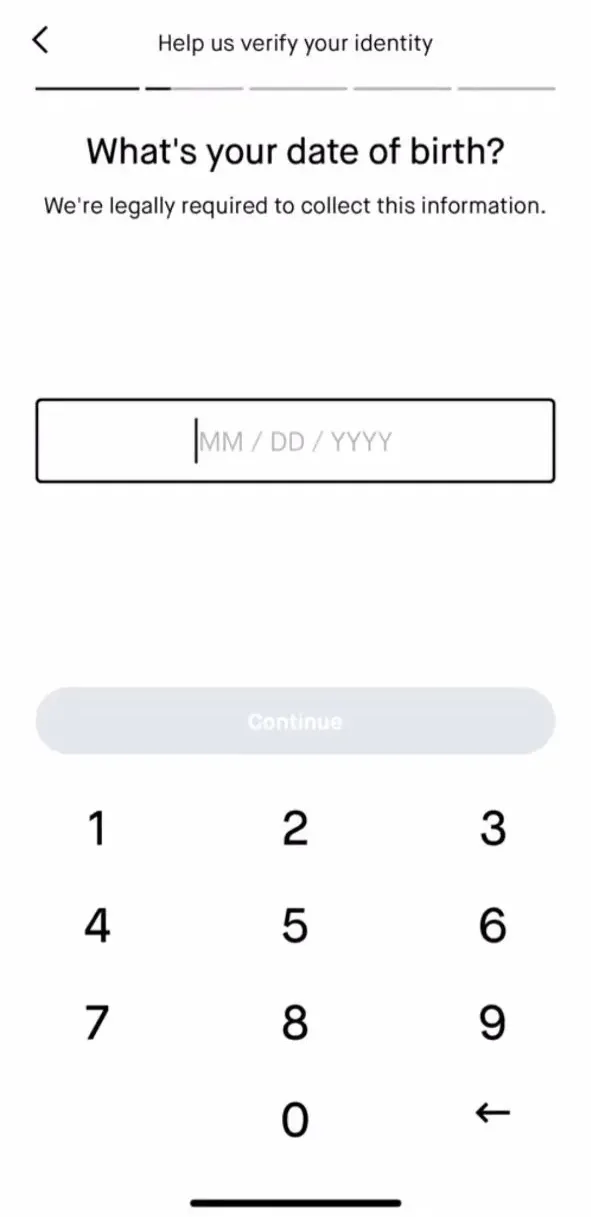
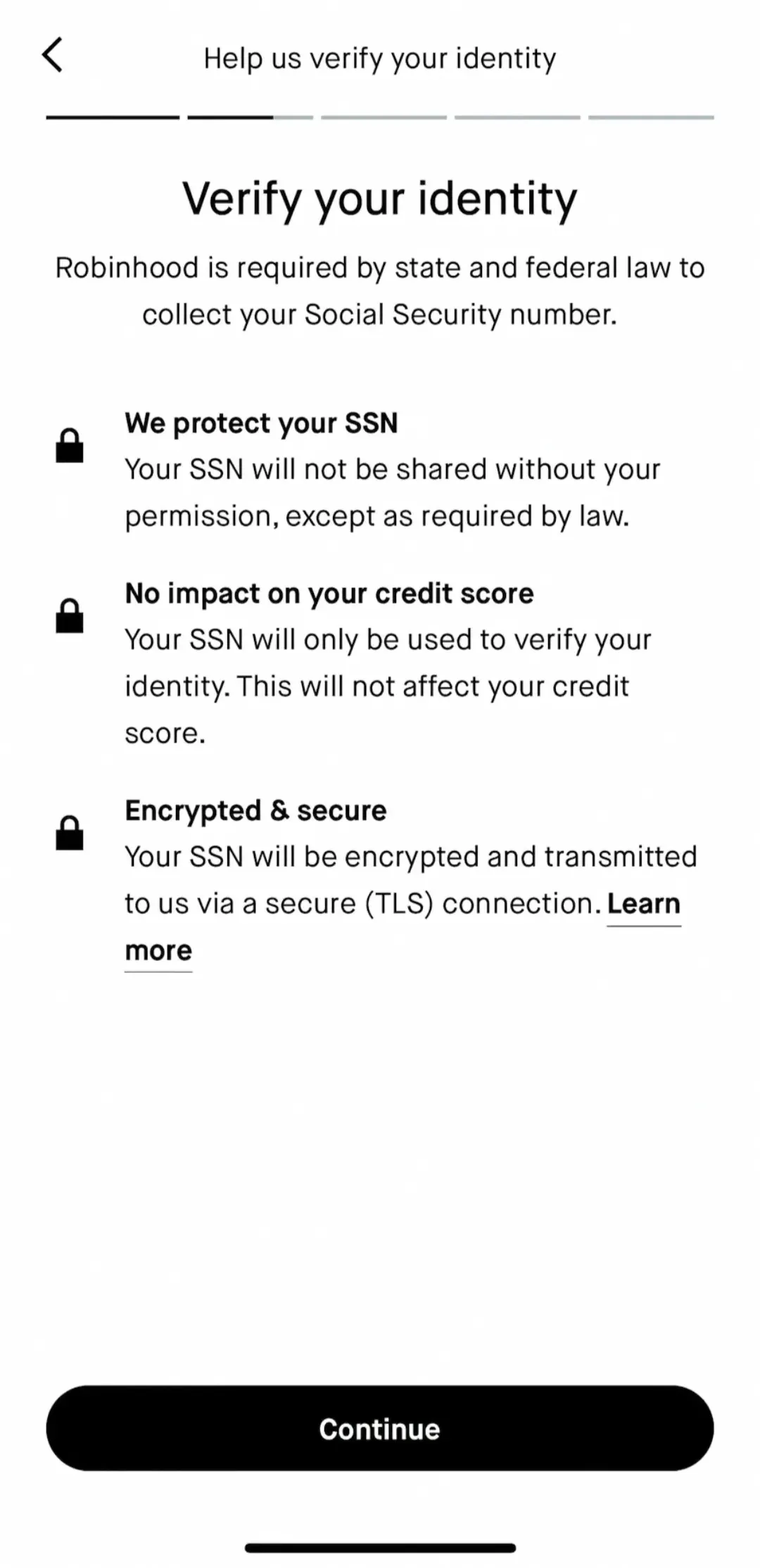
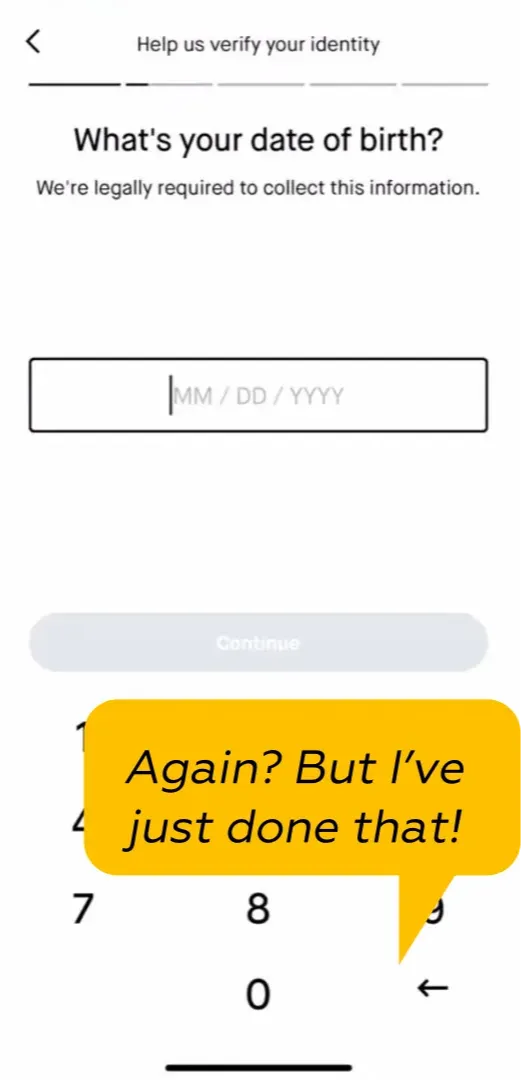
The user begins signing up for the app but doesn’t have their Social Security Number (SSN) readily available.
Screenshots


Best Practice
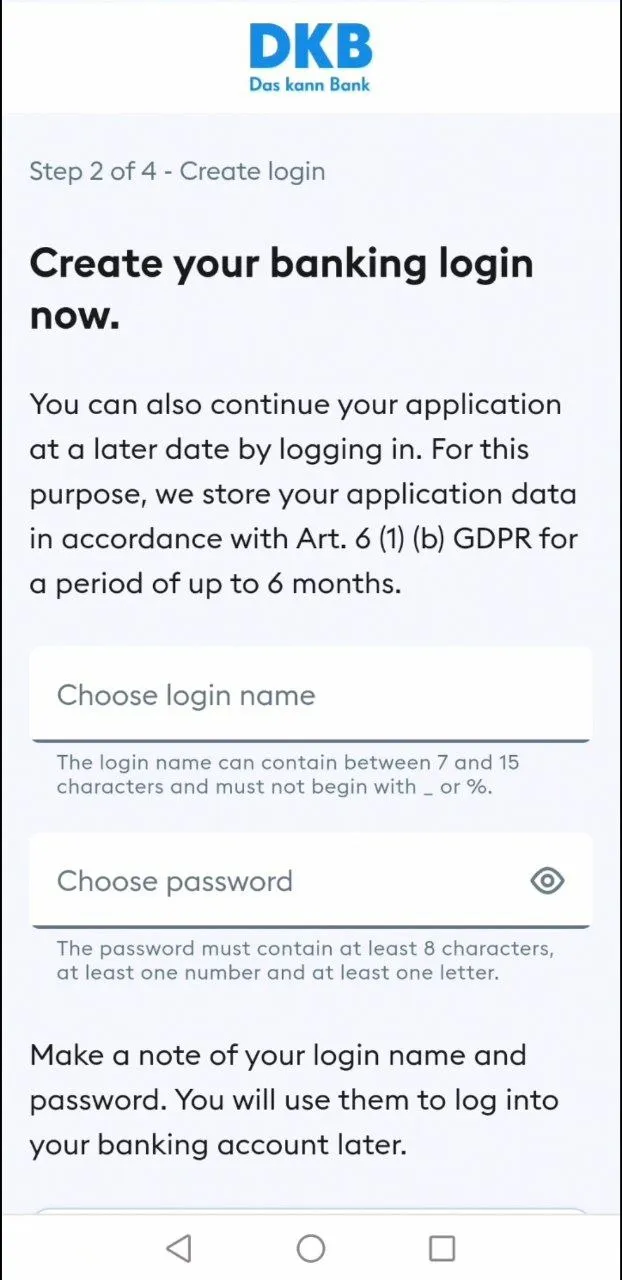
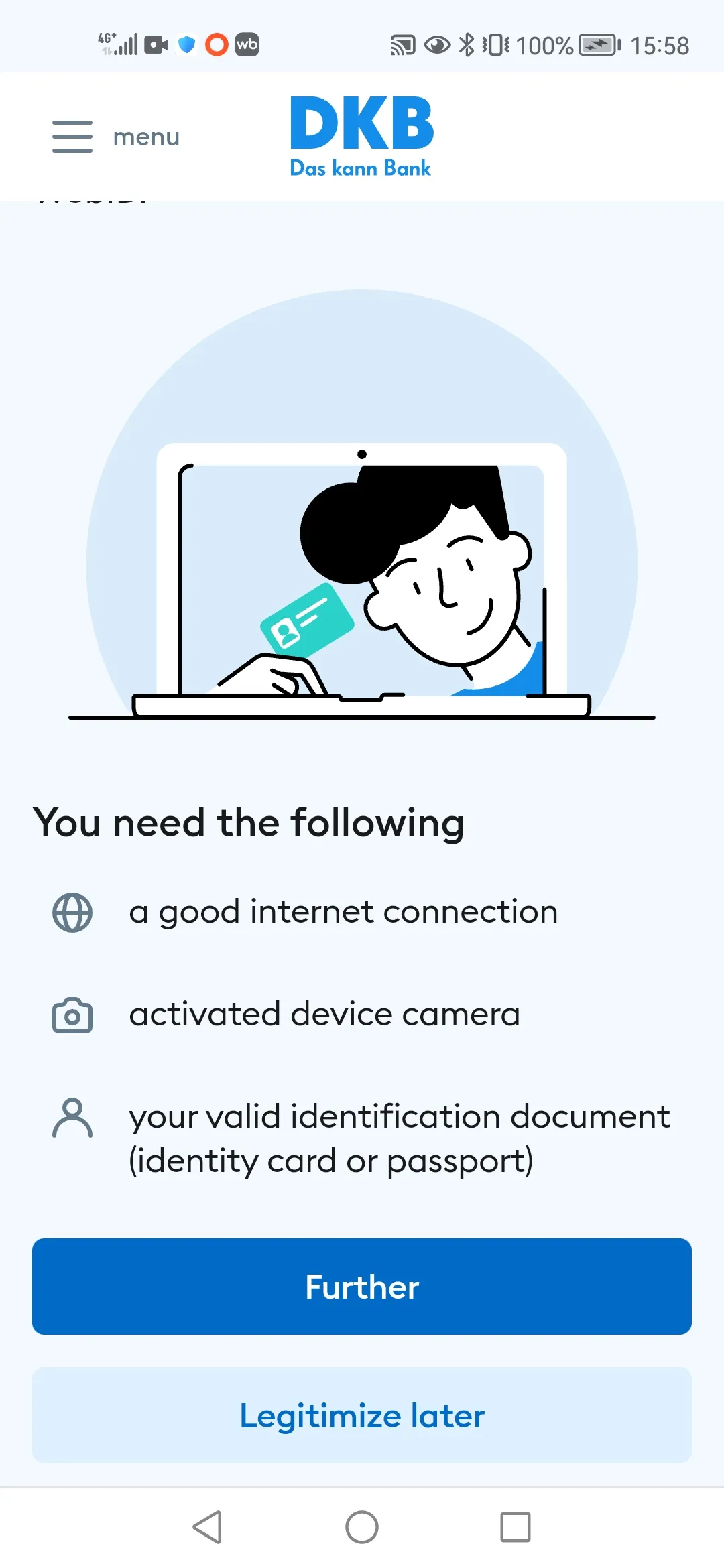
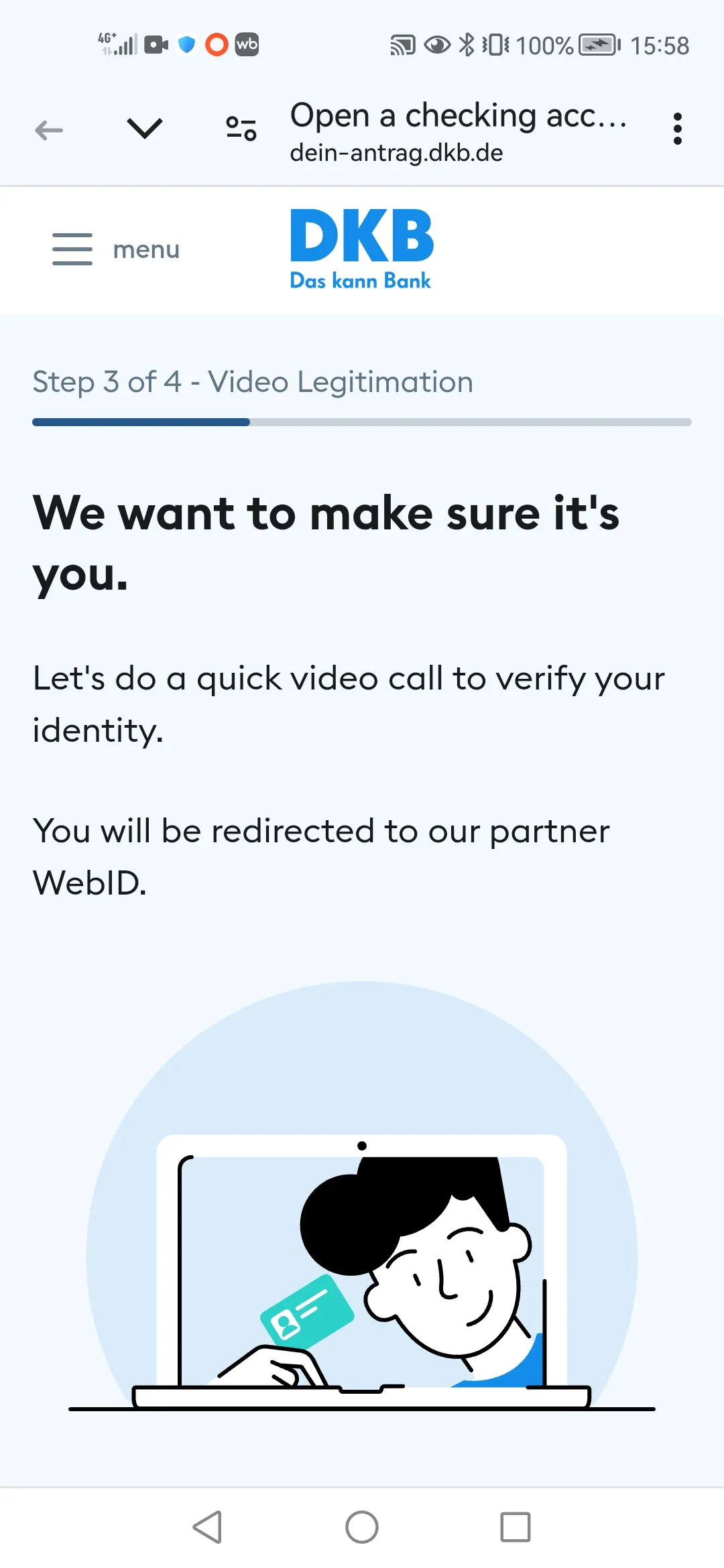
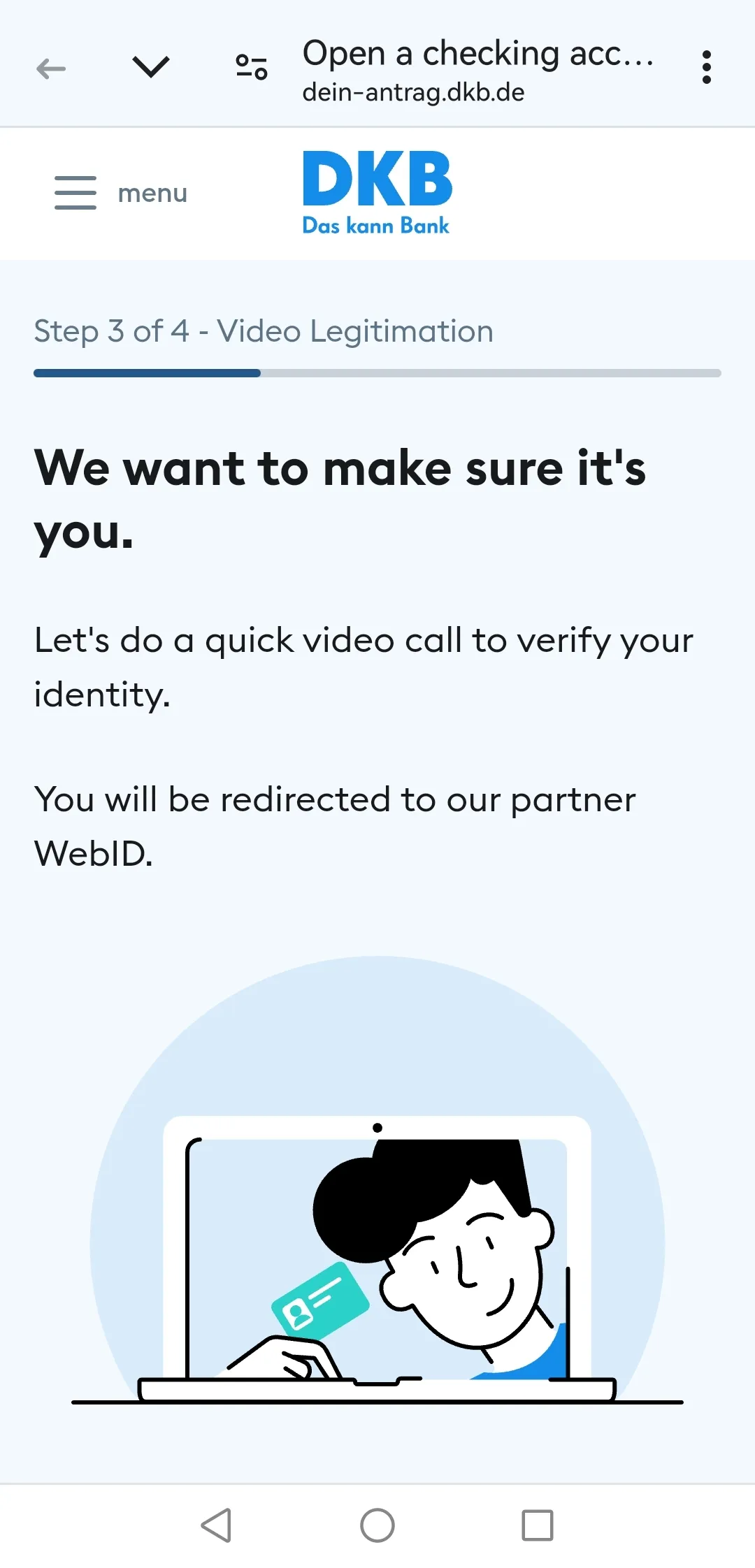
DKB demonstrates an effective approach to simplifying the registration process in banking apps. After gathering all personal data in Step 1, the app allows users to create a login in Step 2, enabling them to save their entered data and pause the process if needed. Importantly, the app clearly informs users that they can pause at any time and that their application data will be saved for six months. This is particularly valuable because the registration form is quite lengthy and includes video identification, which requires both a stable internet connection and access to identification documents. Users may not always be ready for this step at the time of filling out the form. DKB’s solution allows users to return to the process when they are fully prepared, without losing progress. This flexibility reduces frustration and significantly increases the likelihood of successful registration.


Just Eat (The user wants to purchase a specific item, such as a croissant, and quickly add it to their cart)
Craigslist (The user wants to find an apartment for up to $2,000 that allows cats. Ideally, they would like to live in Manhattan, but other areas like Brooklyn are also acceptable. They want to browse all listings under $2,000 across multiple neighborhoods)
Class 4 is the rarest class observed in our research, comprising only 2% of all identified problems. The low frequency signals that most services already optimize performance as a priority. This also sets a high standard: since performance is generally good across digital services, users come to expect instant feedback and fast loading as a baseline. As a result, even minor delays stand out sharply and feel irritating.
4.1. The service (or parts of it) is slow or takes too long to load.
This subclass refers to performance-based delays in the user interface, where immediate on-screen interactions — such as tapping buttons, opening dropdowns, or switching between screens — take longer than expected to respond. User expectations of loading speed are based on industry norms and average UI element loading time in other digital services they use.
Cases in 4.1 include:
This break in responsiveness disrupts the user’s flow, introduces friction into the interaction, and creates frustration due to the need to wait without clear justification.
Such problems are especially common in services that:
Best Practice
DKB sets a benchmark for smooth registration forms in banking apps. All dropdown menus load quickly and function flawlessly, free from glitches or errors. This ensures a seamless and efficient user experience, reflecting high-quality technical implementation and attention to detail.
PayPal (The user wants to accept a new incoming transfer)
4.2. Users must wait for too long after performing an action to see its effect or receive feedback on its successful completion.
This subclass covers situations where the system accepts the user's input or request, but the result of that action is delayed beyond reasonable expectations, based on common waiting times for similar actions in similar services. The action may technically succeed, but the user is left waiting for confirmation, output, or state change, often without understanding whether the system has registered the action at all.
This might involve longer waiting times going far beyond a particular user session, affecting the broader customer experience.
Such delays often occur in transactional scenarios, such as submitting payments, confirming bookings, updating account data.
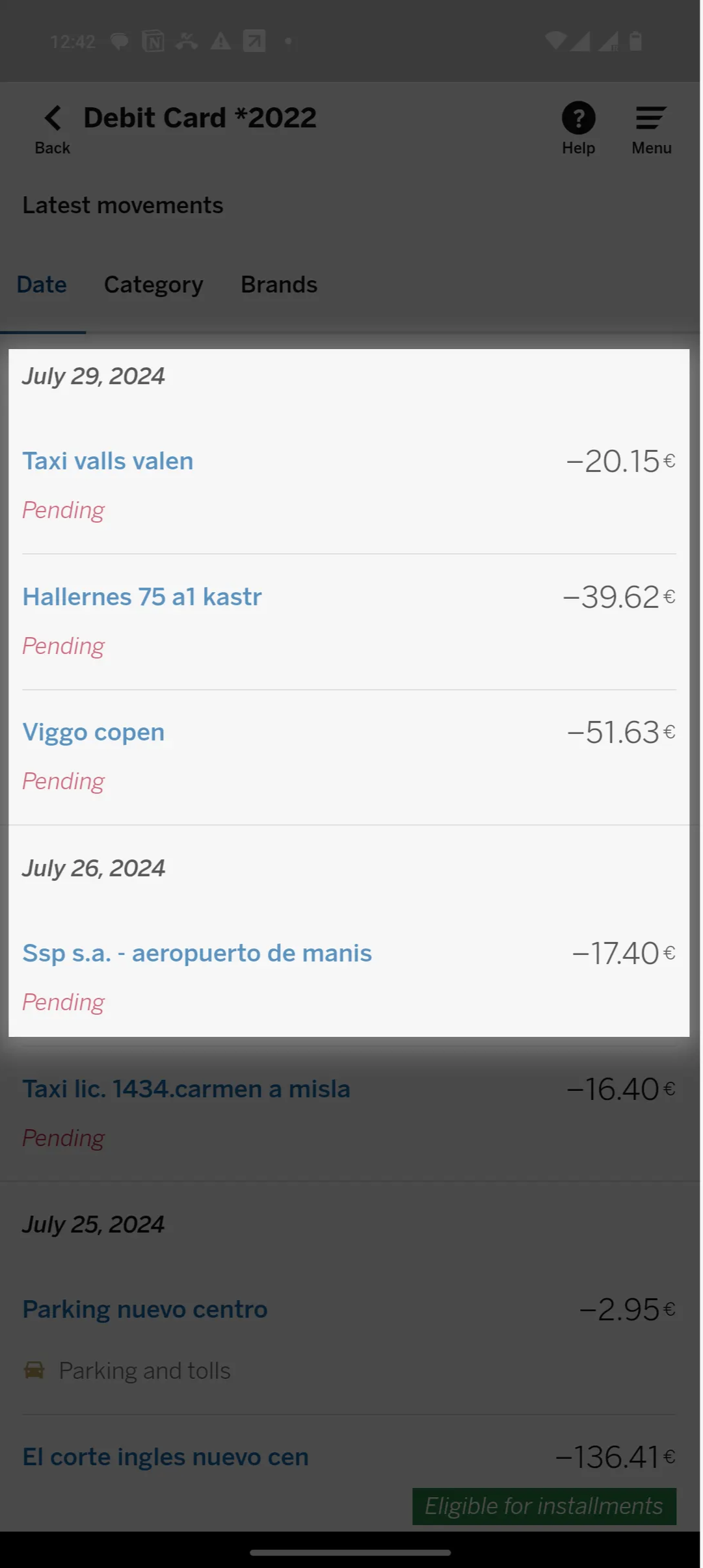
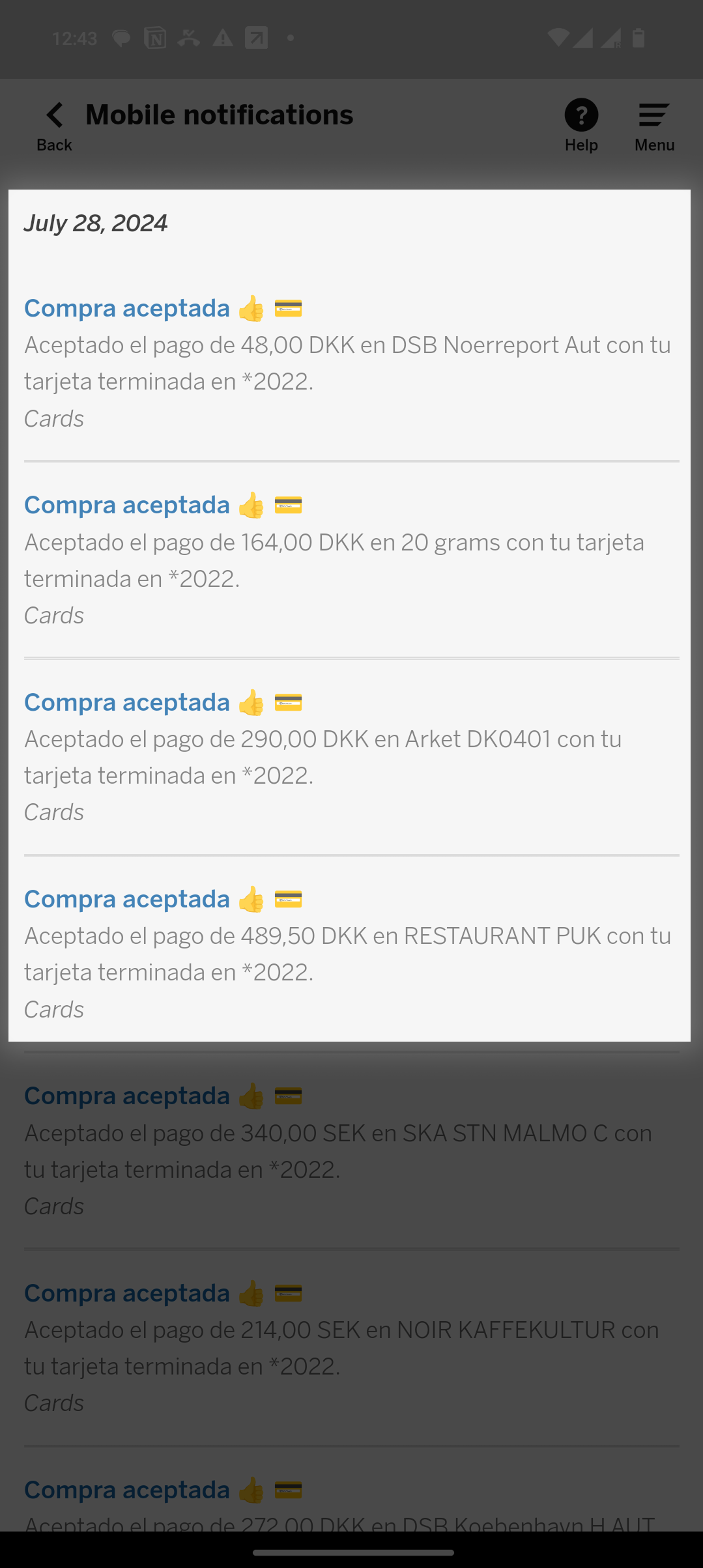
They open transaction history, but cannot see purchases made in DKK, while transactions made in euros are visible right after performing.
It appears that foreign currency (DKK) purchases are delayed for several days due to backend currency conversion processing. This creates a critical gap in financial visibility: the user cannot see their recent international spending, making accurate budget tracking impossible and creating confusion about where their transactions have gone.
The problem is exacerbated when subsequent Euro-denominated purchases appear immediately, making the delayed DKK transactions seem like they have disappeared. This inconsistent data presentation undermines the user's ability to trust the app for real-time financial monitoring and creates significant anxiety about the status of their recent purchases.
Screenshots


Best Practice
In BUX, users can buy stocks denominated in a currency different from the base currency of their portfolio — for example, purchasing a U.S. dollar–denominated stock within a euro-based portfolio. Immediately after the order is executed, the newly purchased asset appears in the portfolio with its value displayed in the base currency. This allows users to instantly understand the impact of the purchase and easily keep track of their overall portfolio.
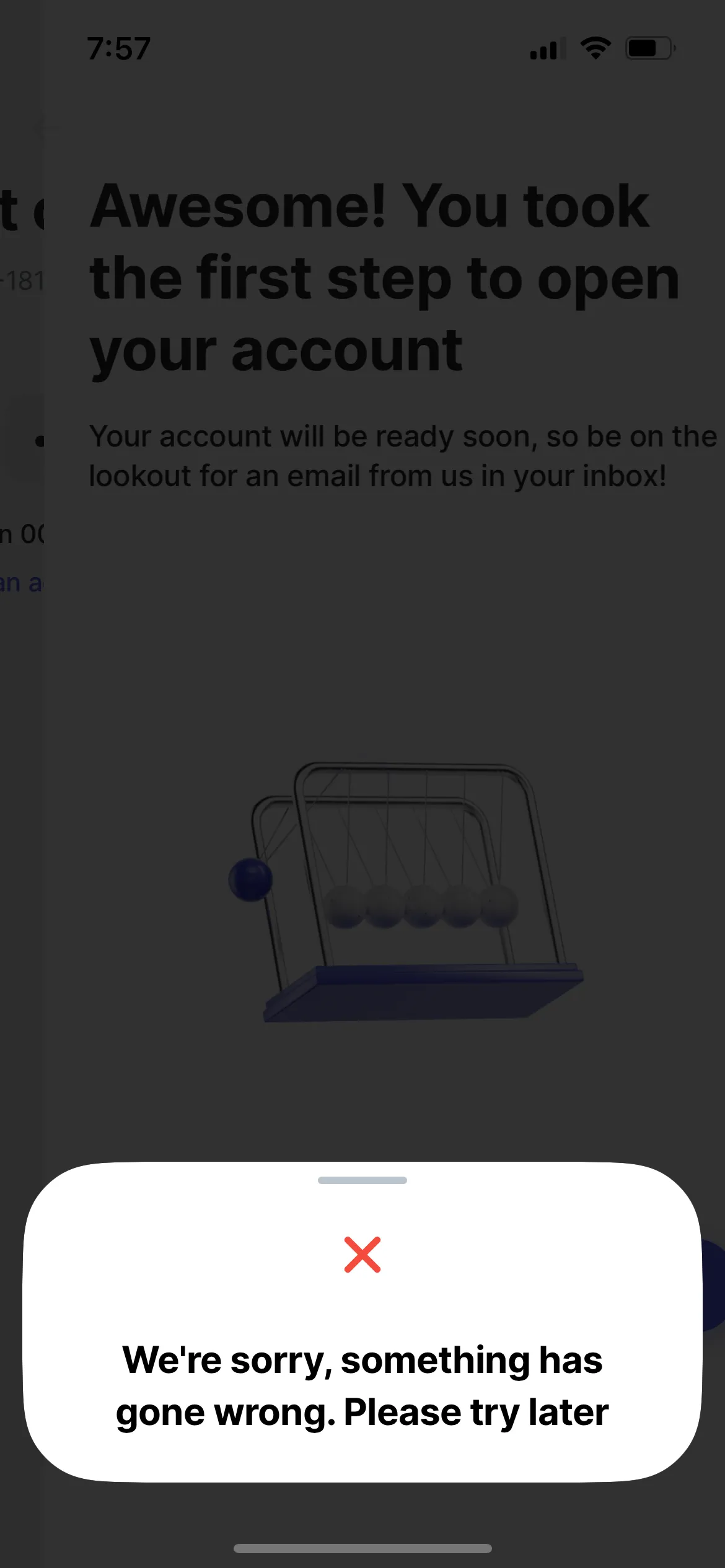
5.1. The service displayed a notification that does not make it clear what happened or whether any action is required.
System notifications serve as a communication bridge between the service and the user. Their core function is to inform users about the state of the system in response to their actions, system events, or background processes — and to do so in a timely, clear, and actionable way.
However, it's a UX problem if a notification appears but the user doesn’t understand what it means, what caused it, or whether they need to do something. This breaks the feedback loop between the user and the system.
Such unclear system messages often appear in account-related scenarios, including login, sign-up, or plan changes.
These are questions where a “no” answer indicates the presence of a 5.1 subclass:
Screenshot

Best Practice
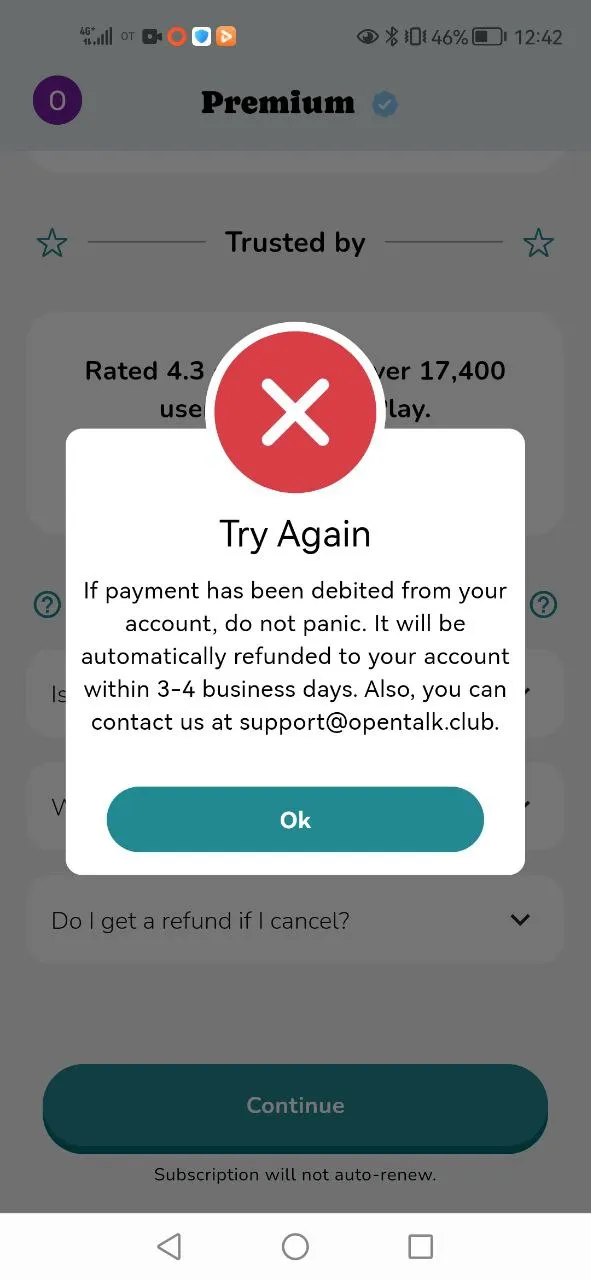
Open Talk app sets a strong example in delivering clear and user-friendly error messages. When a payment fails, the app uses a bold red cross — a simple and universally recognized symbol — to instantly convey the issue. The accompanying text reassures users by explaining what will happen if the payment was mistakenly debited, mentioning that it will be automatically refunded within 3–4 business days. Additionally, the error message includes contact information for support, ensuring users know how to resolve their concerns effectively. This approach reduces user anxiety and enhances trust in the service.

5.2. The service demands data that are unclear or hard to obtain.
This subclass includes situations where the interface asks the user to enter data that is unclear in meaning or difficult to retrieve at the moment, given the context of the task.
Data may be considered “unclear” not only when its meaning is ambiguous, but also when it seems unnecessary for the task at hand or when the user cannot understand how it will affect the outcome.
These problems occur mid-journey, during tasks like booking, checkout, form filling, where the process is already underway. This distinguishes 5.2 from 1.4, where the absence of available or valid data prevents the user from starting the task at all. Such demands disrupt the user flow, causing specific frustration.
At the checkout stage, the user needs to fill in their personal information — such as name, email address, phone number, and country. All fields are mandatory, including the “DNI” field. The user does not know what DNI is and cannot provide it, because DNI (Documento Nacional de Identidad) is the Spanish national ID card issued exclusively to Spanish citizens. As an international visitor, the user has no way to complete this field. This results in a critical breakdown in the purchasing flow, making the service inaccessible to a significant portion of its audience and increasing the likelihood of purchase abandonment.
Best Practice
In the IMG travel insurance service, the traveler information form dynamically adapts based on user input. For example, when a user selects the United States as their country of residence, an additional “State” field appears. If the user changes their residence to Canada, this field is removed automatically. This adaptive behavior ensures that users are only asked for information relevant to their specific context, reducing confusion and making the form feel responsive.
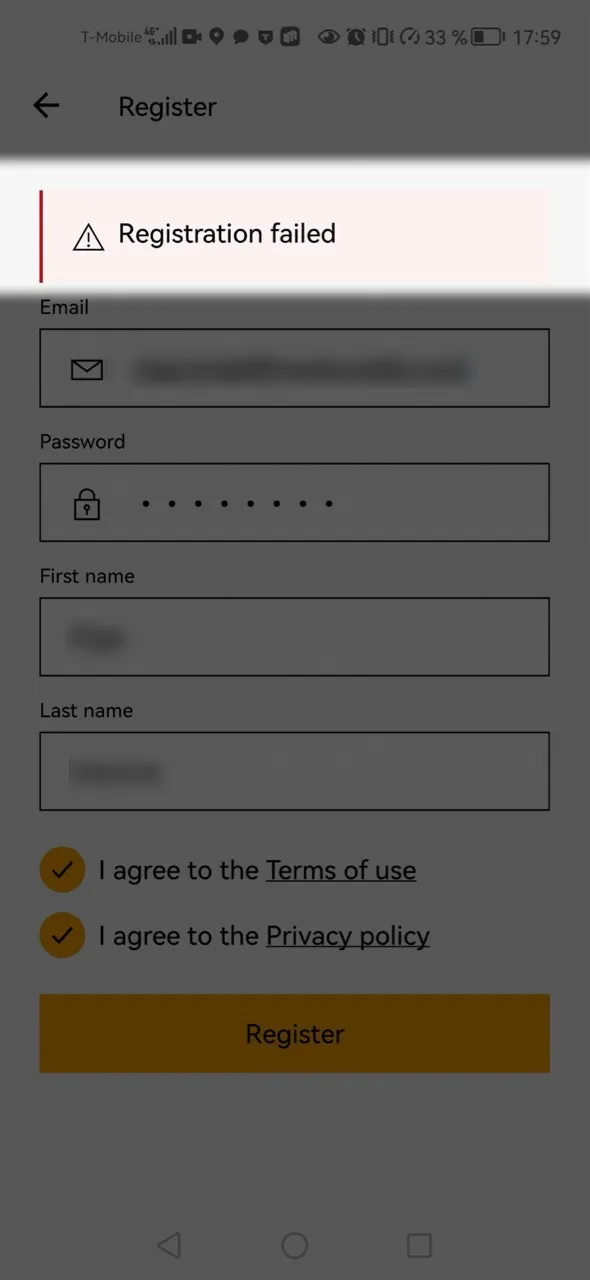
5.3. Errors are reported without clear guidance on how to correct them.
This subclass includes situations where the system notifies the user about an error but does not explain what caused it or how to fix it. The issue is that the message lacks actionable detail. Typically it fails to communicate:
These issues are common in login, registration, payment, and checkout scenarios. Users facing this issue often feel stuck or helpless:
—“I keep getting an error, but nothing tells me how to fix it.”
In many cases, UX problems in subclass 5.3 stem from poor UX writing. While improving UX writing can require little effort, it enables users to understand what went wrong and how to fix it, helping them complete their task.
Screenshot

Best Practice
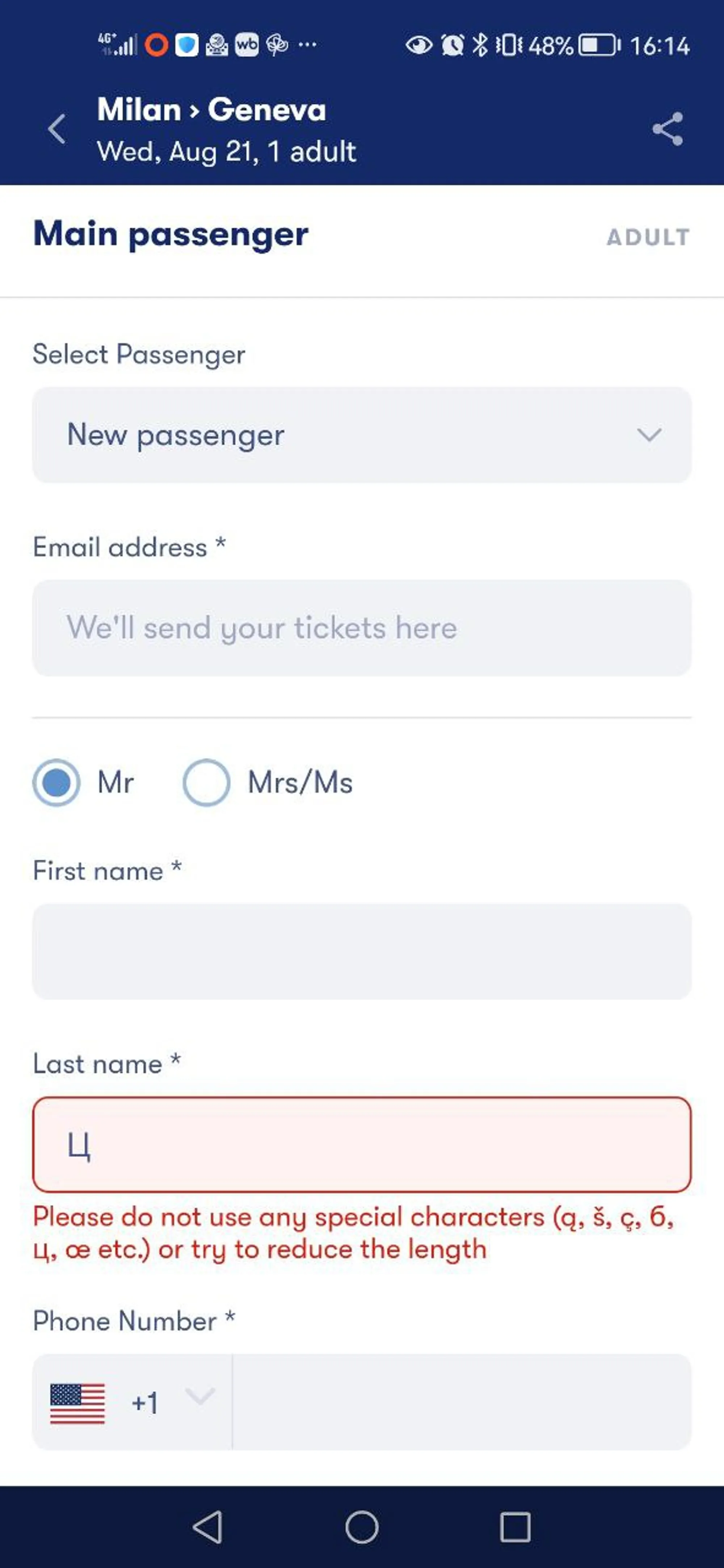
Errors should be reported with guidance on how to solve them. Users may not be able to find the solution themselves, therefore, they will not be able to complete the process. In this example, Omio clearly explains what is wrong and what the user should do about it: as soon as users enter the symbol that cannot be used in this form, the app informs them about the limitations.

5.4. The service does not provide clearly next steps to resolve the user’s task.
This subclass describes situations where, mid-journey, the interface leaves the user feeling stuck. The task is not fundamentally impossible (as in 1.1), but the interface does not offer a clear path forward (or back) — either because there is no visible way to continue (or go back), or because the necessary functions are unavailable within the current channel.
Such cases often occur due to limited access — for example, when a premium-only feature appears active to non-premium users, but nothing happens when they try to use it. Another common pattern involves tasks that can’t be completed within the current channel. For instance, when a mobile app includes a "Manage Subscription" section, but all buttons are inactive because the functionality is only available on the desktop version.
Users encountering these issues feel trapped or misled, as if the interface breaks its promise of functionality. They are left wondering: “What am I supposed to do next?” or “Why is nothing happening?”
These issues are especially common in:
Best Practice
At Deezer, users encounter a Premium tab akin to Spotify's, showcasing a range of subscription options. However, unlike Spotify, Deezer employs tappable banners for its premium offerings, which facilitate direct navigation to in-app purchases. By making the interface elements clickable Deezer ensures easy interaction with the premium offerings.
SoundCloud (The user wants to download their liked songs)
6.1. The service breaks tasks into stages, but does not show the current stage or remaining steps.
The user initiates a task that involves several steps — such as verifying identity, submitting documents, or completing a form. They proceed through the interface by entering information or completing subtasks, expecting the system to guide them through the process. However, the interface provides no indication of where the user is in the process or how many steps remain. When users don’t know how much is left or where they are, they are likely to abandon task completely, as it undermines a sense of control and predictability — key UX principles.
Typical interface patterns that trigger this problem include absence of a progress bar or step indicator.
This problem is particularly common in services that involve complex, multi-stage operations, such as:
On the profile screen, the user sees the button labeled “Publish profile” and clicks it. After that the website offers users to answer multiple questions, so that they could complete their profiles.
There is no progress bar in that form, so users don’t understand how long the form is and how many questions they have to answer before they finish. This doesn’t allow users to plan their time and makes the process perplexing.
Best Practice
DKB (Deutsche Kreditbank) offers a best practice in user onboarding by providing a visible progress indicator throughout the registration process. This feature helps users easily track their progress, giving them a clear understanding of how many steps remain and how much time is required to complete the process. By offering this transparency, the app allows users to plan their time more effectively, reducing uncertainty and enhancing the overall user experience.

6.2. The service does not provide clear feedback after completing an action.
This subclass describes situations where the system does not inform the user whether their action was successfully completed (when this feedback is expected and needed for understanding status), or what the result of that action is.After performing a task — such as submitting a form, making a payment, uploading a file, or saving changes — the user is left unsure:
— “Was it successful or did something go wrong?”
— “Is there anything else I need to do?”
This lack of confirmation or feedback breaks the user’s sense of control and introduces unnecessary doubt or re-checking. The user may end up repeating the action, abandoning the process, or contacting support unnecessarily.
Typical signs of this issue include:
This issue is especially common in forms, financial operations, and registration processes, where clear feedback is strongly anticipated by users.
Best Practice
Omio provides an excellent user experience when editing personal data. After submitting changes, users remain on the same page and receive a notification at the top, confirming that all changes have been saved. This seamless process ensures clarity and reduces any potential confusion.
MEGA (The user wants to upload a video from their phone to a cloud drive)
6.3. It is unclear how to return to a previous step or if it is possible to leave the process without losing progress.
This subclass describes situations where the interface does not make it clear whether the user can safely go back, pause, or exit an ongoing process without losing their input or progress.
It often arises in multi-step tasks such as account setup, form filling, checkout, or booking processes, especially in services where users may want to review or edit previously entered information. The interface fails to answer key questions such as:
— “Can I go back to the previous step?”
— “Will I lose everything if I close the app or page?”
— “Will my data be saved if I leave and return later?”
When such options are not clearly communicated, users may feel trapped, anxious about making mistakes, or hesitant to proceed at all.
This issue is often caused by missing back buttons, lack of “Save” options, absence of confirmation prompts, or unclear navigation in full-screen modals.
Best Practice
In the Insight Timer app, users completing a preference questionnaire can easily navigate back to previous steps using a back arrow icon. This familiar and consistently placed navigation element allows users to revise their answers at any point without losing progress, which increases their sense of control and makes the onboarding flow feel more supportive.
7.1. The service requires remembering or entering long/complex values.
This subclass includes situations where the user is forced to remember and type long, complex, or easily mistakable values — for example, identification numbers, codes, or item names. The problem can occur both within the service itself (e.g., during sign-up form) and when users need to transfer information from the service to an external context(e.g., sharing data with support in other channel).
Common patterns in this subclass include:
These issues are common in financial services and e-commerce.
Best Practice
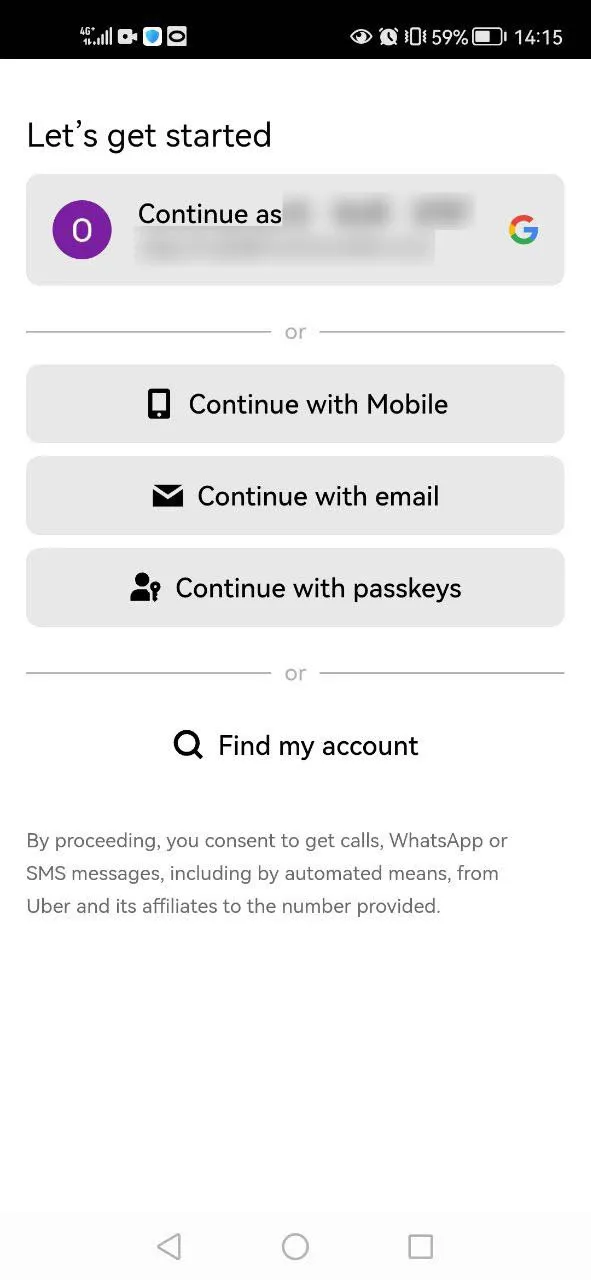
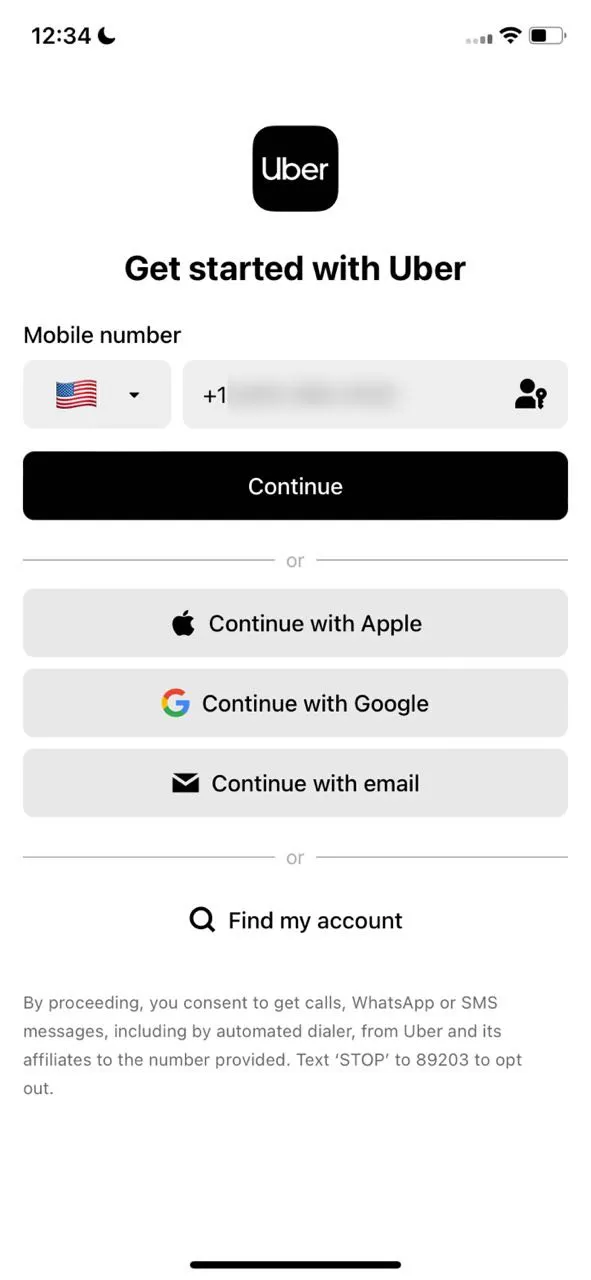
Log in process must be simple and fast. For users the best way is when the app offers multiple ways of logging, as some of them may not be available for the user at the moment. The great example shows Uber, which allows users to log in via email, Google or Apple Account, Mobile and previously made passkeys. These ways are familiar to most users and the service doesn’t demand any unclear data, which makes this realization the best practice.


Robinhood (In the Robinhood app, the user has a question about the commission fees for a specific stock. The user wants to copy the stock’s ticker or name to avoid manually typing it during a conversation with support.)
7.2. The service requires precise interaction with a specific screen area, demanding extra effort and attention.
This subclass describes situations where the user is forced to tap, click, drag, or interact with a very specific or small area of the screen to complete an action. These issues are especially common on mobile devices, where tapping accuracy is lower and users are often on the move or interacting with one hand.
Users typically expect to tap without zooming in or aiming carefully. When the interface violates this expectation, it increases cognitive and physical effort and slows task completion.
Typical design mistakes include:
These issues are particularly common in:
Best Practice
Booking.com delivers an excellent experience in map navigation within its app. The map responds accurately and intuitively to user gestures, allowing for smooth zooming in and out without any interruptions or errors.
This precise and seamless interaction enhances usability, enabling users to explore hotels effortlessly. Whether searching for accommodations or exploring specific areas, the smooth map functionality ensures users can focus on their tasks without frustration, making Booking.com a benchmark for effective map integration in mobile apps.
Trenitalia (The user is creating an account in Trenitalia — Italian app, allowing users to purchase tickets for national and regional trains and local buses)
Binance (The user wants to access the order history in their Binance account)
7.3. The service does not protect against input errors.
Users typically expect digital services to catch typos and offer guidance during input. They also expect instant, clear system feedback during data entry, not after submission. Therefore, this subclass includes situations where the interface fails to help users avoid or detect input mistakes. Errors can happen in any system, but effective interfaces are designed to reduce the likelihood of user mistakes and support error correction early and clearly.
Problems often arise due to:
These issues are particularly common in services that involve forms, logins, or search — especially in:
Best Practice
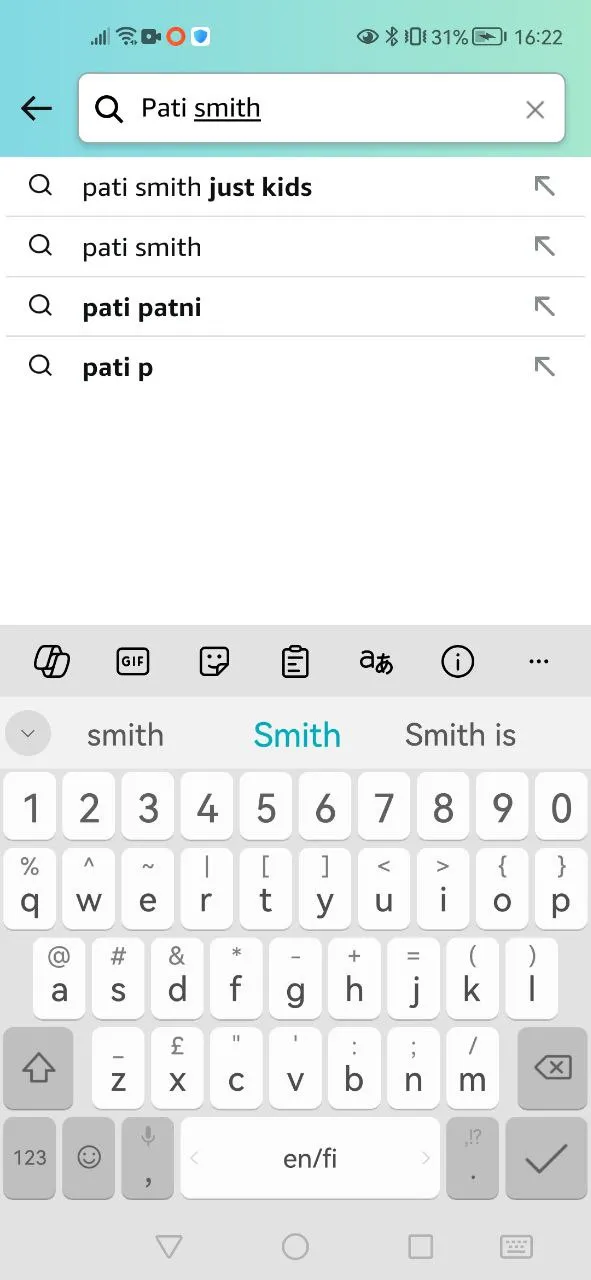
Amazon demonstrates an excellent example of a human-centered data entry flow by implementing a forgiving format that tolerates user mistakes and typos. The service is designed to help users complete their tasks seamlessly, even if errors are made during data input. As a result, users can refine their queries and locate the desired product more efficiently, even when they are uncertain about specific details.


8.1. The service implies an operation is free or cheaper than it is.
Users expects transparency in pricing and assume that prominently shown prices reflect the full cost. When hidden fees are revealed late or framed ambiguously, this violates their expectation of fairness, leading to distrust.
This subclass includes situations where the interface creates a false or incomplete impression of cost. The user is led to believe that an operation is free, included in a plan, or cheaper than it actually is, due to missing cost information, poor placement of pricing details, or intentional dark-pattern design that that downplays the true cost.
This can take a form of:
Typical UI triggers include:
Even if the cost is technically mentioned somewhere, the overall impression created by the interface leads to feeling of being tricked. This problem frequently occurs in travel services, e-commerce, and subscription-based services.
Best Practice
On Tomplay, users are presented with a section offering free musical scores. When the user accesses this section and taps the download button, the score is immediately downloaded — unlike on MuseScore. This direct and user-friendly approach simplifies access to content, enhancing the overall user experience by making it easy to obtain content which is labelled as free.
Avis (Rent a car)
8.2. Interface elements are misinterpreted as solutions to the user’s task, but are meant for other purposes.
This subclass addresses situations where the design, labeling, or placement of interface elements misleads the userinto believing that a particular element will help them achieve their current goal when in fact, it does not.
The core problem is a mismatch between what the UI appears to offer and what it actually does. This can happen due to:
These cases violate the UX principle of recognition over recall, as users are misled by what the interface "suggests" rather than what it actually delivers. This type of problem can surface in any digital service, across a wide range of scenarios — from searching for account settings, to making payments. It is more common in mobile apps, where screen space is limited and visual shortcuts (icons, labels) carry greater weight in guiding user behavior.
Best Practice
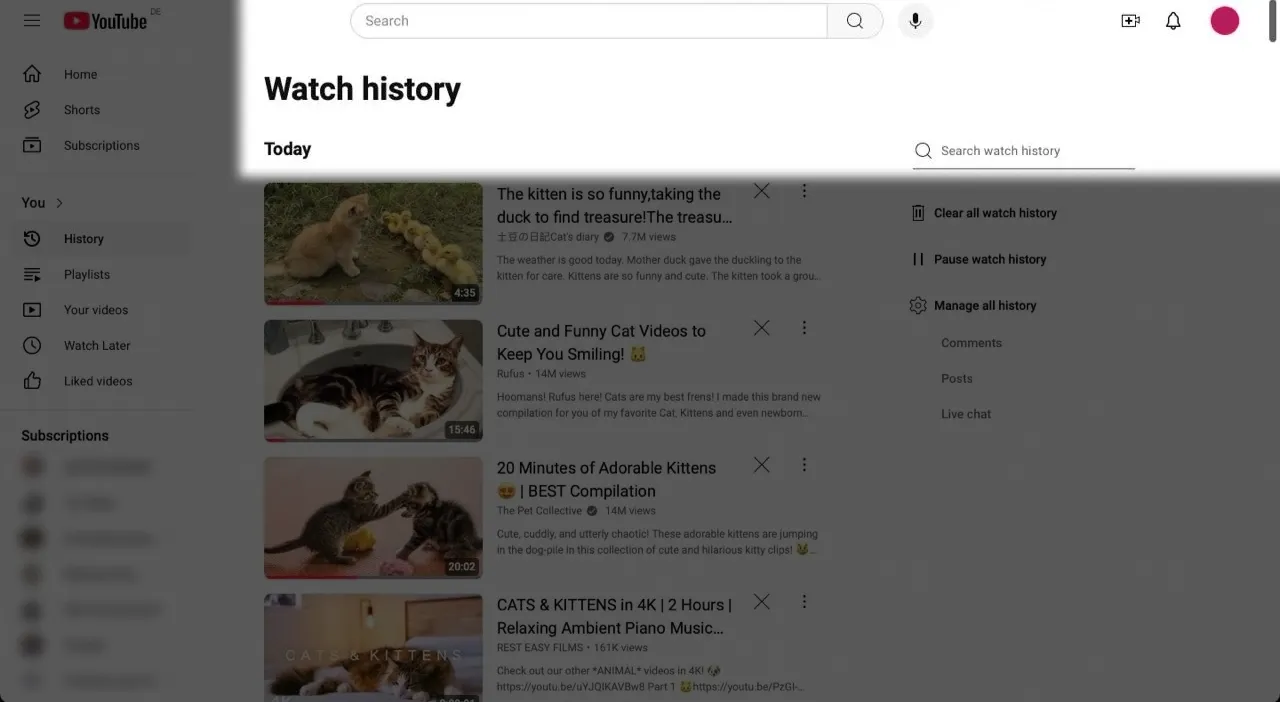
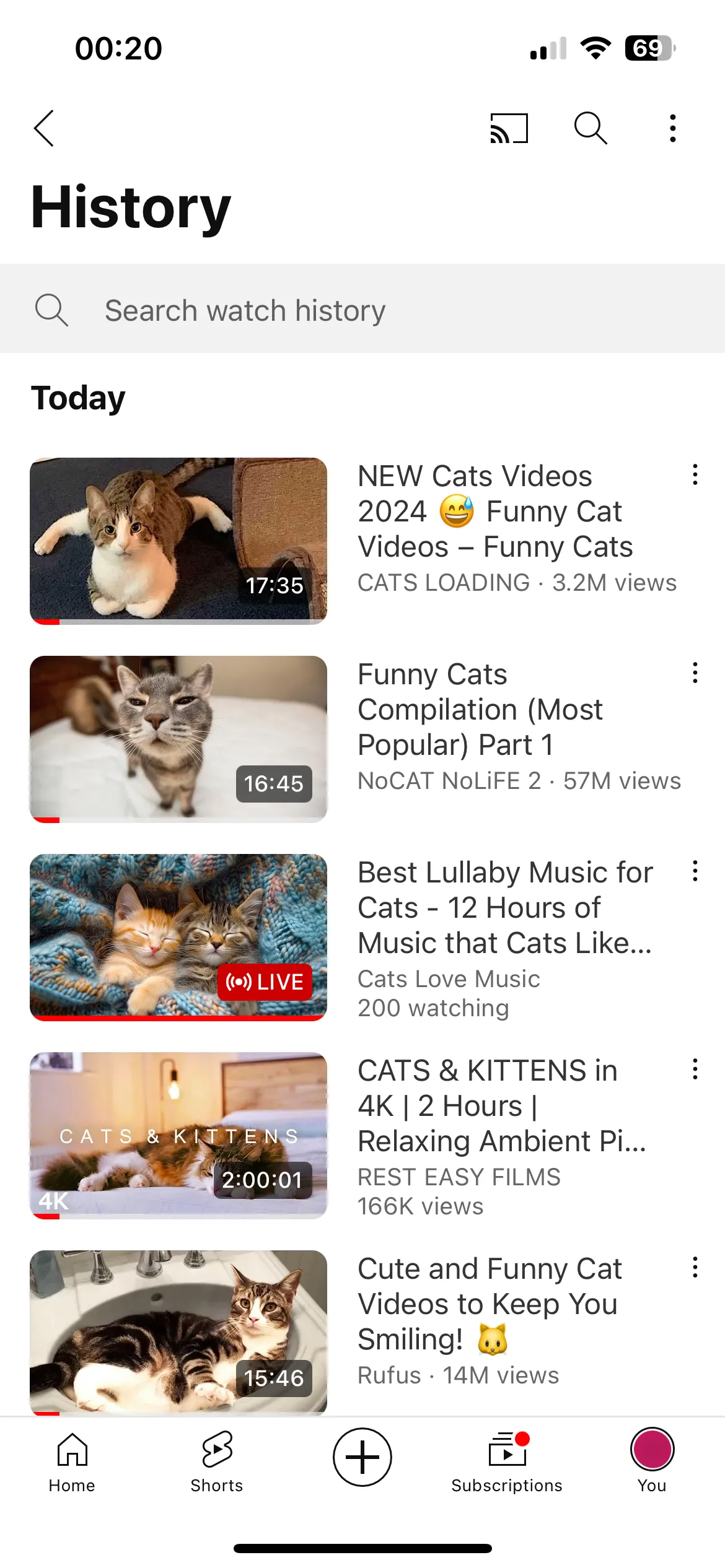
In the YouTube mobile app, the search bar for the "History" section is strategically positioned directly above the list of watched videos. This placement ensures a clear visual hierarchy, as the search bar is visually and contextually connected to the “Watch history” title. The design naturally guides the user's attention to the appropriate search function for finding previously watched content. At the same time, the global search remains accessible via a distinct icon in the top-right corner, maintaining clarity and avoiding confusion between local and global search functionalities.

8.3. The service does not display clarifying information or interface elements, which leads to user mistakes and incorrect interpretation of the information in the service.
These problems occur in situations where the interface includes elements or terms whose meaning is unclear without additional context, and users expect the system to provide clarification. This subclass includes cases where the absence of clarifying content, visual cues, or contextual explanations causes users to misunderstand what they are seeing or doing. The result is incorrect assumptions, errors, or decisions made on false premises.
This problem occurs across many types of digital services:
In some cases, these omissions are unintentional, reflecting poor design or content prioritization. In others, they may constitute dark patterns — withholding clarity in order to nudge the user toward a less-informed decision.
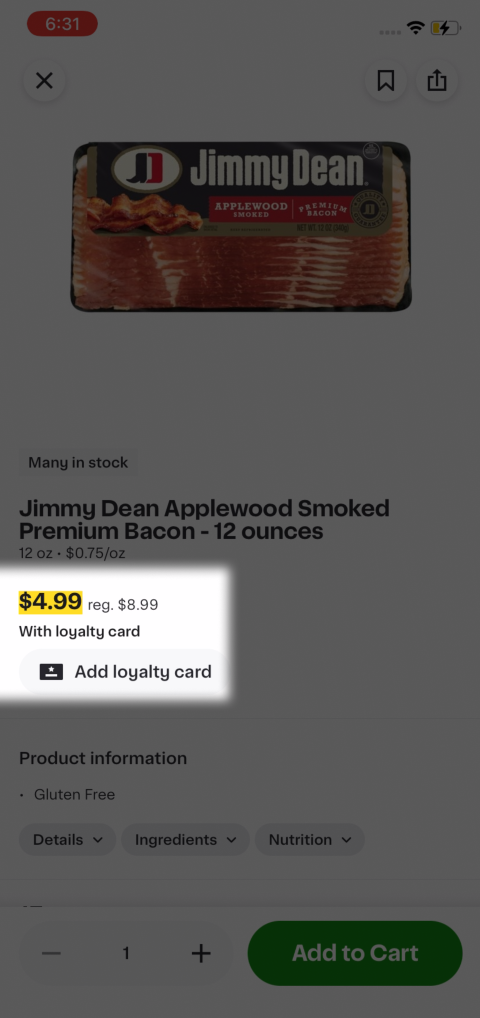
The user adds the bacon to their cart directly from the catalog, where the discounted price is shown without visible conditions. Upon reaching the cart, the price unexpectedly increases from $4.99 to $8.99. The interface provides no explanation for this change or any indication that an action is required to secure the advertised discount.
The root cause is that the discount is conditional on linking a store loyalty card — a requirement that is only available on the product detail page, which the user didn’t visit while shopping. The catalog and cart interfaces fail to signal this prerequisite, and the visual hierarchy of the product page separates the price from the "With loyalty card" text, making the condition less clear. Users can feel misled by a promotion they cannot access without a loyalty card which they may not have.

Best Practice
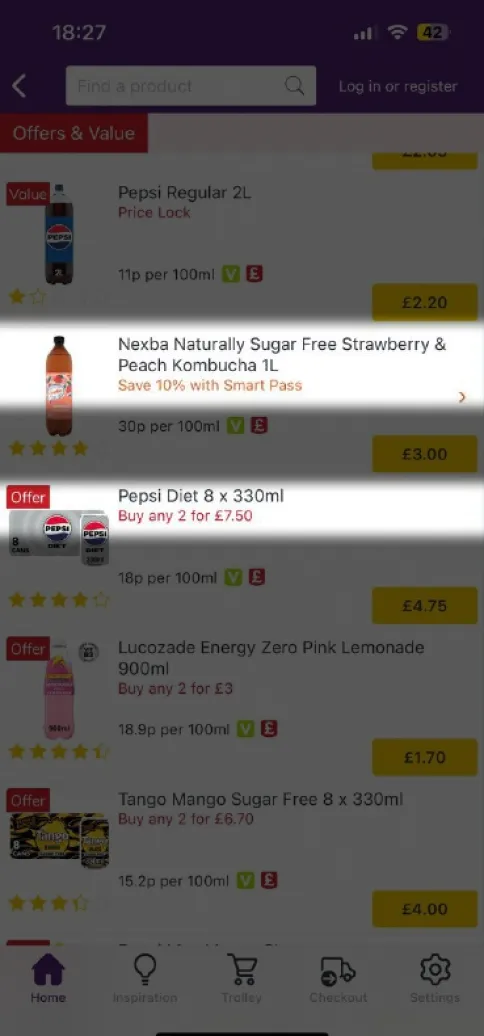
On the Ocado app, products with discounts are prominently marked in the catalog with explanatory badges with the conditions of receiving the discount. Users understand in advance what actions they need to take to receive the discount. By providing this transparent and upfront communication, Ocado prevents expectation mismatch of the shopping experience.

8.4. The interface provides no visual or textual hint about hidden features or information.
This subclass covers situations where important features or information are hidden behind interactive elements, but the interface provides no visual hints or signals that these elements can or should be interacted with. Users expect the service to guide them, reveal its capabilities, and support discoverability. When this expectation is broken, users miss out on features simply because nothing in the UI provides hints they exist.
This issue is about the absence of affordances: cues in design that help users recognize where interaction is possible. For example, in carousels or horizontal scroll menus, partially cut-off elements or subtle shadows help users realize there’s more content. This can happen in any type of service or scenario.
After clicking on one of the icons on the map, the object card opens, but the user can see only one picture. The user swipes the photo to see more pictures of the same flat, but instead of this, the user sees the card of another object.
It is not clear what would happen after swiping the photo: some services show more photos of the same object (AirBnB, Trip.com) while others show other objects (Booking, Agoda) so there is more than one flow. As a result, users have to pay more attention to the app because otherwise they may feel lost. The service should show clearly what will happen after user’s actions.
Best Practice
Many apps face a challenge in their map view, where it is unclear what happens when users swipe a hotel image. Agoda addresses this issue effectively by clearly indicating that swiping the image will display the next property. This approach reduces confusion and ensures a more intuitive user experience.
For apps that allow swiping through multiple photos of the same property, Airbnb demonstrates best practice by using pagination dots. These dots indicate the number of available images and provide clarity about what will happen after swiping, making the user flow more predictable and seamless.
Condor (Choose the connecting flight with the suitable layover)
Problems within this class typically occur on a product page
9.1. Important information is hard to find or not prominent.
What qualifies as “important” information in this context?
Important information refers to any content that is essential for task completion or decision-making — for example, pricing details, luggage rules, or transaction statuses.
There are two common ways such information can become difficult for the user to find: through its placement and its visibility.
From a placement perspective, this is not a navigational issue (not like Class 3), because the user is already on the correct screen or page; they have reached the right context, but the critical information within that context is not surfaced clearly enough.
Poor placement means important information is located in areas of the interface that users do not naturally look to during the task flow. This may include:
From a visibility perspective, the problem arises when the information is present on the right screen but is visually de-emphasized. Unlike 12.4, where the overall design system is flawed and slows down information retrieval, issues in 9.1 can appear even in interfaces that are generally well-designed — the problem lies in assigning insufficient visual weight to important information on a specific screen. This can happen, for instance, when information is:
Often cases include combination of above-mentioned UX flaws — information gets overlooked because of both placement and low visual weight, or several low visual weight conditions.
Evoca Bank's transaction history lacks critical context, as it does not indicate whether a transaction was incoming or outgoing. This essential information is only accessible by opening the detailed view for each transaction, forcing users to perform extra steps for basic financial comprehension. Providing clear visual cues (like color coding or +/- symbols) for transaction type is a foundational UX pattern that shapes core user expectations for any financial history.
Without clear indicators for transaction direction at a glance, users are unable to quickly or accurately track their income and expenses, undermining the app's usability and effectiveness as a financial management tool.

Best Practice
Wise sets an excellent standard for transaction history design in banking apps. Each entry prominently displays key details, such as the amount, transaction type, and status, accompanied by intuitive icons for better understanding. Positive and negative amounts are visually distinguished through color coding (e.g., green for received amounts), making it easier to identify inflows and outflows at a glance.

Binance (Transfer USDT between two wallets)
9.2. Critical information is unavailable when needed.
This subclass refers to situations where users are already in the process of completing a task, but some essential piece of information is missing at the moment it’s needed most. Unlike 9.1, where the information is present but poorly placed or styled, in 9.2 the issue is that the system fails to surface critical data at the point of decision, forcing users to either guess, backtrack, or leave the task unfinished.
What makes a piece of information “critical”?
It’s critical if without it, the user cannot confidently or successfully complete their current task. This includes details like prices, limitations, availability, or any requirements directly linked to a decision.
This problem is frequently observed in:
The user locating a past transaction expects to export an official payment confirmation, a standard feature in modern banking apps. However, there is no such option available in the interface. They discover that the only way to save the payment confirmation is from the success screen right after the transaction has been done.
The service creates a critical dead end for a common user task. Individuals needing proof of payment for accounting, reimbursement, or records are left with no way to complete their task within the app, leading to frustration and undermining the service's reliability as a financial tool.
Best Practice
Wise demonstrates an exemplary approach to providing users with comprehensive transaction details. For peer-to-peer money transfers, users can access all necessary information by navigating to the transaction history. The app allows users to quickly access a document with the transaction details and download it in PDF format. Additionally, users can easily share the document via email, messenger, or any other preferred method, ensuring flexibility and convenience for record-keeping and communication.
9.3. Necessary information for the task completion is missing.
This subclass describes situations where the user cannot complete a task because essential information is entirely missing from the interface. It is not provided in context, not accessible through help sections, and not available anywhere else in the app. Unlike 1.1, where accessing the information is the user’s primary goal, in 9.3 the information is secondary but necessary — its absence prevents successful task completion.
Users often reach a dead end: they may abandon the task, turn to external sources, or contact support. This creates frustration, distrust, and a sense that the system is unreliable or not designed for real-life needs.
This issue is frequently found in:
The transfer form fails to provide precise fee information at the point of decision-making. The commission is revealed only on the final confirmation screen, after the user has submitted the transfer for processing.
This lack of upfront transparency forces users to proceed with uncertainty or abandon the process. It prevents them from making informed financial decisions, creates a fear of unexpected charges, and systematically erodes trust in a service that is critical for users who depend on reliable and affordable international transfers.

Best Practice
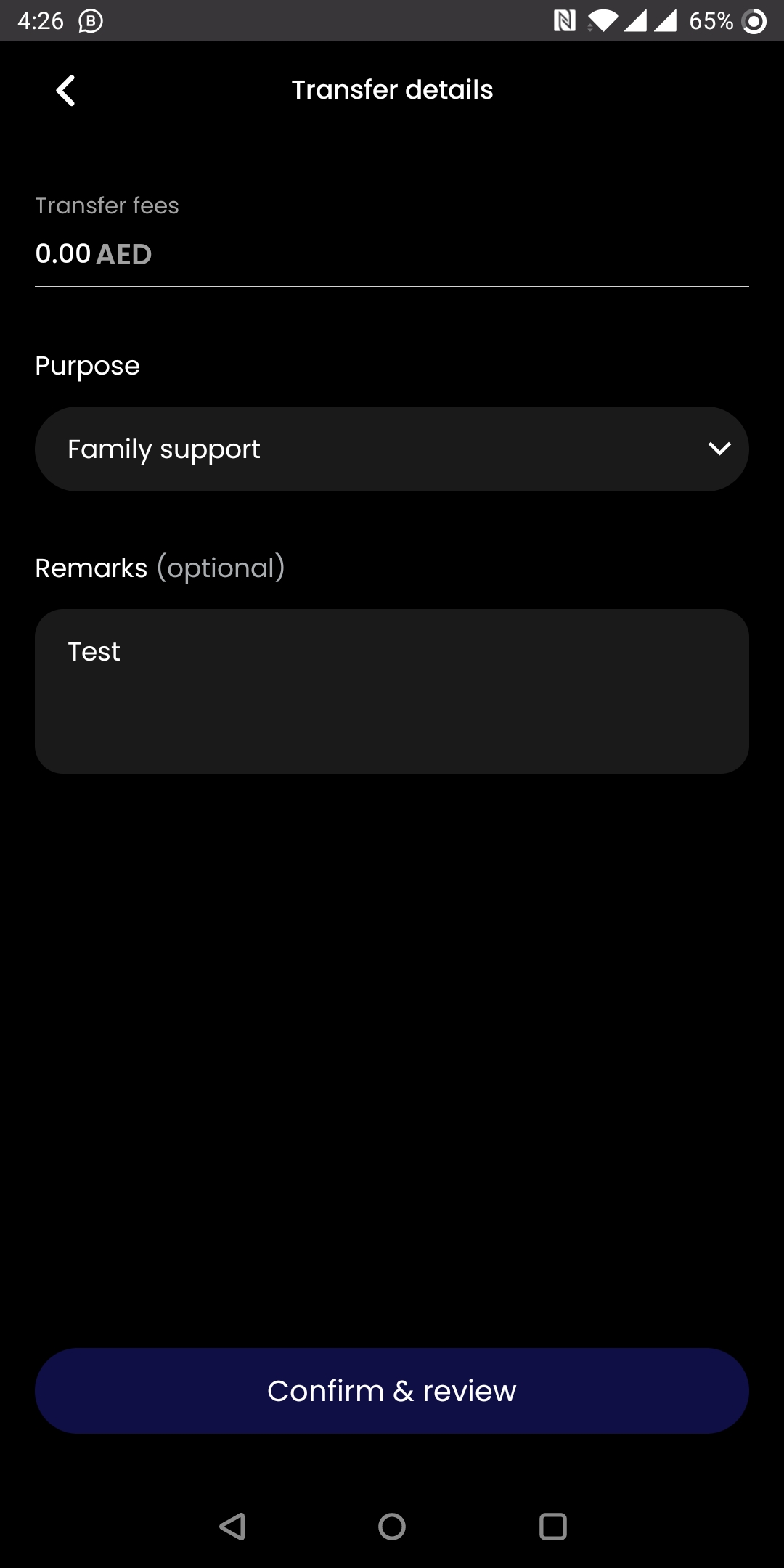
Al Hilal Bank effectively addresses a critical industry pain point — the late disclosure of fees — by displaying transaction costs immediately after the user enters the amount. This proactive transparency, which occurs well before the final confirmation screen, empowers users to make informed decisions and adjust their transactions early in the process.


9.4. The service does not communicate expected waiting time for operations
If an operation is not immediate and takes time, users must be informed about waiting time — control and predictability are UX principles not to be violated. So the system task is to communicate expected waiting time before and after the action (e.g., in the payment form prior to transaction, and again on the success screen).
If this feedback is missing, users are left feeling uncertain:
— “Now what? When will it be completed?”
— “Has it already been processed? Should I wait longer or contact support?”
This issue typically arises in financial services, government and utility apps, and onboarding or verification flows, where operations like payments, document uploads, support requests, or approval processes may take minutes, hours, or even days; yet the system provides no feedback.
Best Practice
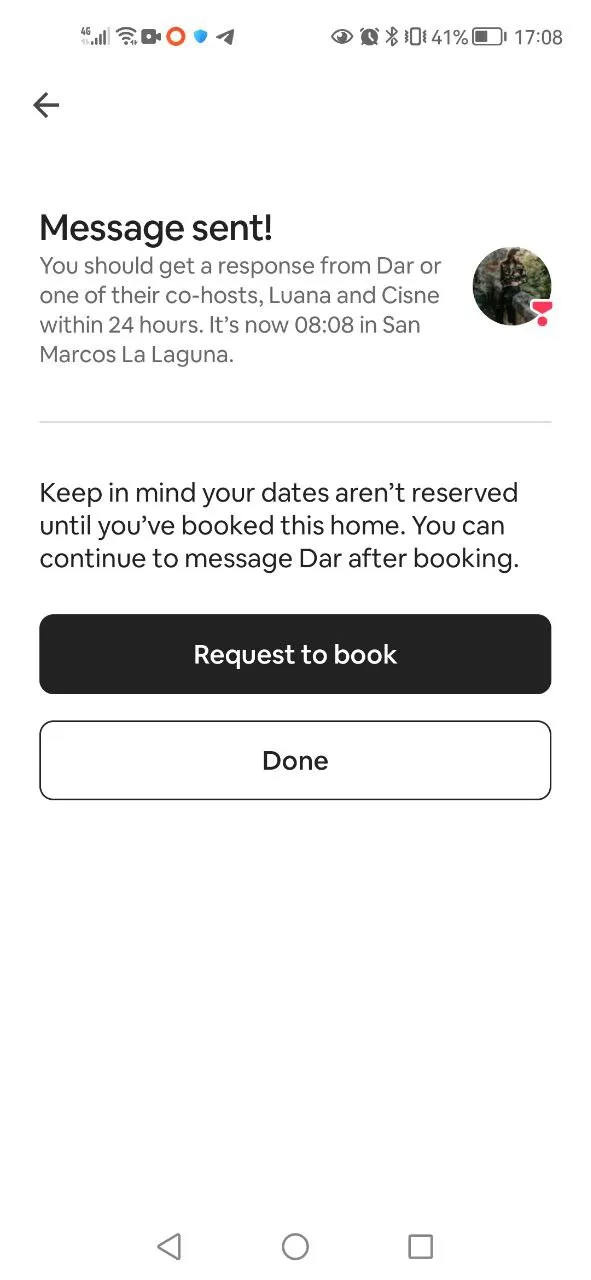
Airbnb demonstrates best practice by providing clear communication expectations when users contact a host. The app indicates that the host will respond within 24 hours and displays the local time at the host's location, helping users anticipate when a reply is likely. Additionally, each property listing includes information on the host's typical response time, enabling users to plan accordingly. The dialogue between renters and hosts takes place directly within the app, simplifying the process and ensuring that the communication channel is obvious. A dedicated Messages icon in the app's tab bar menu allows users to easily access all their conversations at any time, providing reassurance and a streamlined experience.


10.1. Similar actions are performed differently in various parts of the service.
This subclass includes situations where users encounter inconsistencies in how the same or similar actions are executed across different sections of the service. This may include differences in layout, interaction patterns, available options, terminology, or control placement.
Such inconsistencies violate the principle of internal consistency, which allows users to apply knowledge gained in one part of the interface to another. When this fails, users are forced to relearn interactions, leading to cognitive strain.
This issue often results from design decisions made in isolation, where different sections are developed without shared guidelines or reuse of components. It particularly affects services with complex flows and multiple entry points, where the same action (e.g. sorting, editing, confirming) is accessible from different parts of the app or website.
This problem is frequently observed in:
The filtering system on the Skillshare website is inconsistent and hard to explore. Filters are structured differently depending on the navigation zone, creating a fragmented experience.
This inconsistent organization of filters forces users to adapt to different filtering logics depending on where they are navigating, making the process longer and less intuitive. This lack of uniformity not only disrupts the user journey but also diminishes overall usability.
Best Practice
On educational websites, quick access to filters is essential for helping users find the right course efficiently. Udemy exemplifies this by providing seamless filtering options across both the catalog and search bar. Users can effortlessly filter courses by level, language, and rating, regardless of their entry point. These filters are prominently displayed and immediately accessible, eliminating the need for extra steps. This unified and user-centric design ensures a streamlined search experience, allowing users to reach their desired results quickly and intuitively.
Skillshare (Change speed of the video)
10.2. Unusual interface elements or actions are required.
This subclass includes situations where the service requires users to interact with nonstandard interface elements or perform unfamiliar actions, even though a well-established and more effective convention exists for the same task.
Users naturally expect that standard actions (e.g., selecting a quantity, deleting an item, confirming a step) work similarly across different services. When these expectations are violated without good reason, it creates confusion. The problem is not the innovation itself — it arises when a custom interaction replaces a familiar one but works worse, making the task harder, slower, or more error-prone.
This issue is commonly seen in:
The website uses a slider to select the number of bedrooms, which creates a mismatch between the control type and the task requirements. Sliders are typically suited for selecting a range, but in this case, the interface does not show clearly how to handle situations where the minimum and maximum values are equal or where users want to specify an exact number.
The user feels puzzled because a standard task is implemented in a really unusual way. This poor control choice leads to inaccurate filters and adds cognitive load.
Best Practice
Realtor, a U.S.-based real estate website, provides an intuitive and flexible filtering option for searching apartments by the number of bedrooms, implemented in the form of a dropdown menu. When users click on “Beds” in the filters, all options become visible, allowing them to specify both a minimum and maximum number of bedrooms, catering to those with precise requirements. Alternatively, users can search with only a minimum number or any number if the exact count is not a priority. When a minimum number is set, a "+" sign next to the number clearly indicates that the search results will include apartments with the chosen number of bedrooms or more.
10.3. Inconsistent feedback for similar actions.
This subclass includes situations where the system gives different types or levels of feedback for similar actions in different parts of the interface. Users expect similar interactions to result in predictable and uniform responses, and when this consistency is broken, it undermines the user's understanding of how the system works.
Examples of inconsistent feedback include:
This inconsistency often makes users doubt the outcome of their action and question whether the system is functioning reliably.
This problem often appears in financial services, account management, and content submission, especially where the same type of action is spread across multiple flows or screens.
After entering the query “Magnesium B6” in the search bar, the user is presented with a list of 1,775 products. Faced with such a large selection, the user attempts to find more affordable options by using the sorting feature. They switch to sorting by price in ascending order, but the result narrows down to just 2 products. This directly contradicts user expectations — sorting should reorder results, not hide most of them. This occurs not because of relevance issues; the initial results page already contains numerous products that satisfy the query. The underlying problem is that the search and sorting mechanisms operate on different subsets of results, creating an inconsistency that the interface does not communicate to the user.
As a result, the user has no way to view all products related to “Magnesium B6” sorted by price. To find the cheapest option, they must browse and manually analyze the long list of offerings.
Best Practice
On the Fruitful Yield website, the search results remain consistent in size regardless of the applied sorting option. When users sort by price, relevance, or other criteria, the system reorganizes the full list of search results without reducing or filtering out items. By maintaining the same result set, Fruitful Yield allows users to easily find the cheapest or most relevant product without the need for manual browsing.
Omio (Go back in the booking form to change the baggage settings)
10.4. The service behaves unexpectedly from the user’s perspective.
This subclass covers situations where the system's behavior does not align with user expectations, even though the interface appears correct or familiar. The issue arises when user actions lead to illogical, inconsistent, or disproportionate outcomes, based on what users intended to do.
These expectations are shaped by standard patterns in digital services — users expect, for example, that a “Back” button returns them one step back.
Unexpected behavior often involves:
These moments erode user trust, as people begin to doubt whether the interface will behave consistently, forcing them to second-guess actions.
Errors described in subclass 11.1 most often occur due to a mismatch between the visual or textual form of an element and the actual logic in the system. This issue often arises in financial apps, e-commerce, educational and booking services.
Best Practice
Trip.com sets a high standard for language settings with its seamless and intuitive design. By default, the app aligns with the device's language, ensuring an effortless setup for first-time users. Additionally, users can easily change the app's language in the Settings without needing to restart or re-enter the app, simplifying the process.
A standout feature is the independence of language, currency, and country settings. Users can customize each setting separately, allowing them to configure the app in the most convenient way for their needs. For instance, changing the language does not alter the currency or country settings, and vice versa. This flexibility accommodates diverse user preferences and makes Trip.com an excellent example of thoughtful and adaptable design.
iHerb (Buy top-rated 5000 IU Vitamin D)
iHerb (Remove the unnecessary items from cart)
Just Eat (Сreate carts at multiple restaurants)
OLIVE YOUNG GLOBAL (Guest checkout)
WizzAir (Book a flight between countries using different currency)
11.1. Use of complex professional or technical terms.
This subclass refers to situations where the interface relies on domain-specific or technical language that is difficult for the average user to understand. Such terminology may be familiar to professionals but can be confusing and completely opaque to general users.
Users typically expect services to communicate in clear, human, and accessible language. When that expectation is violated, it annoys users:
— “Why are they talking to me like I have a finance degree?”
This issue is particularly common in services that deal with complex or regulated subject areas — such as finance, cryptocurrency, healthcare, or government platforms.
Typical problems include:
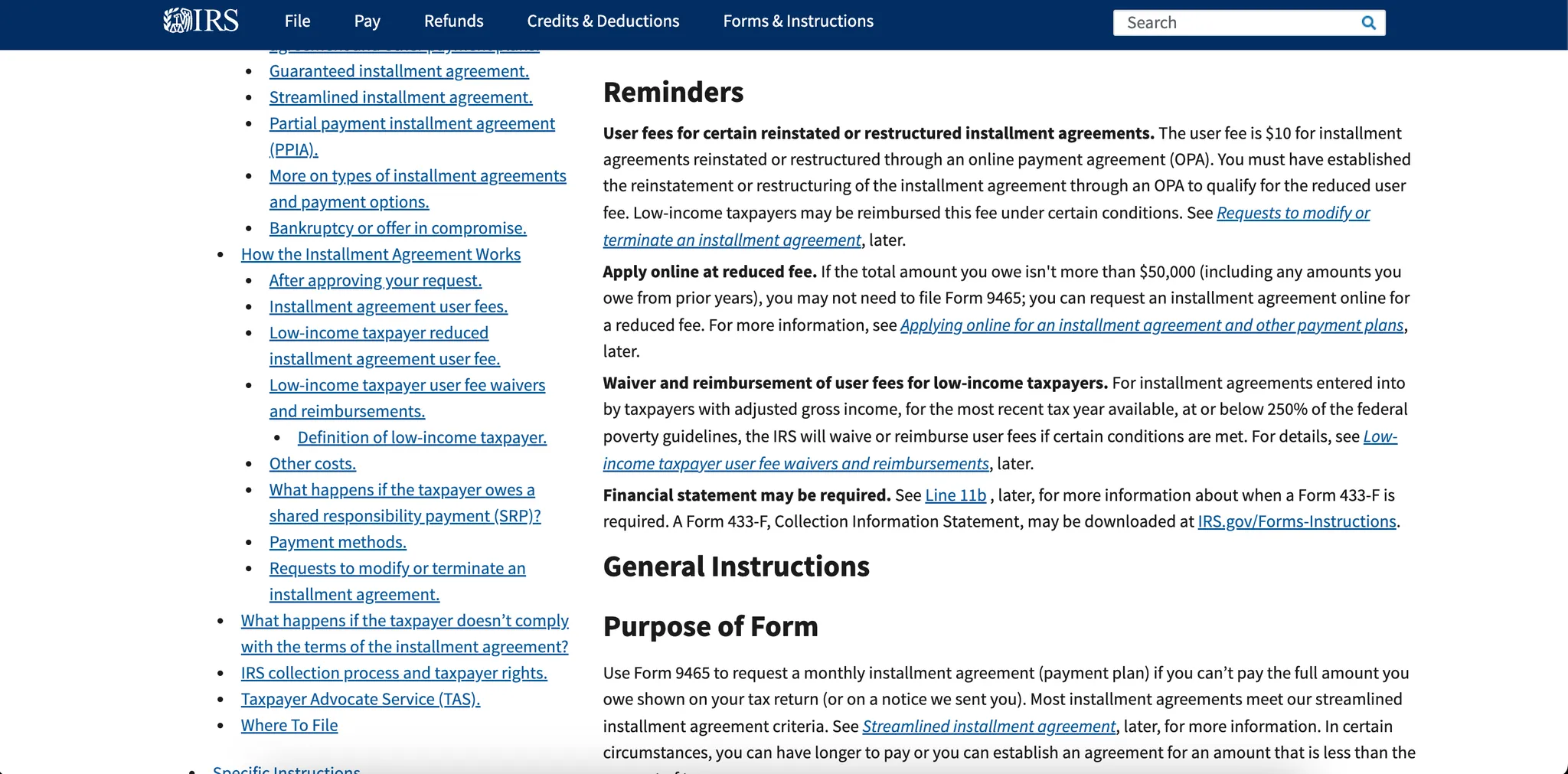
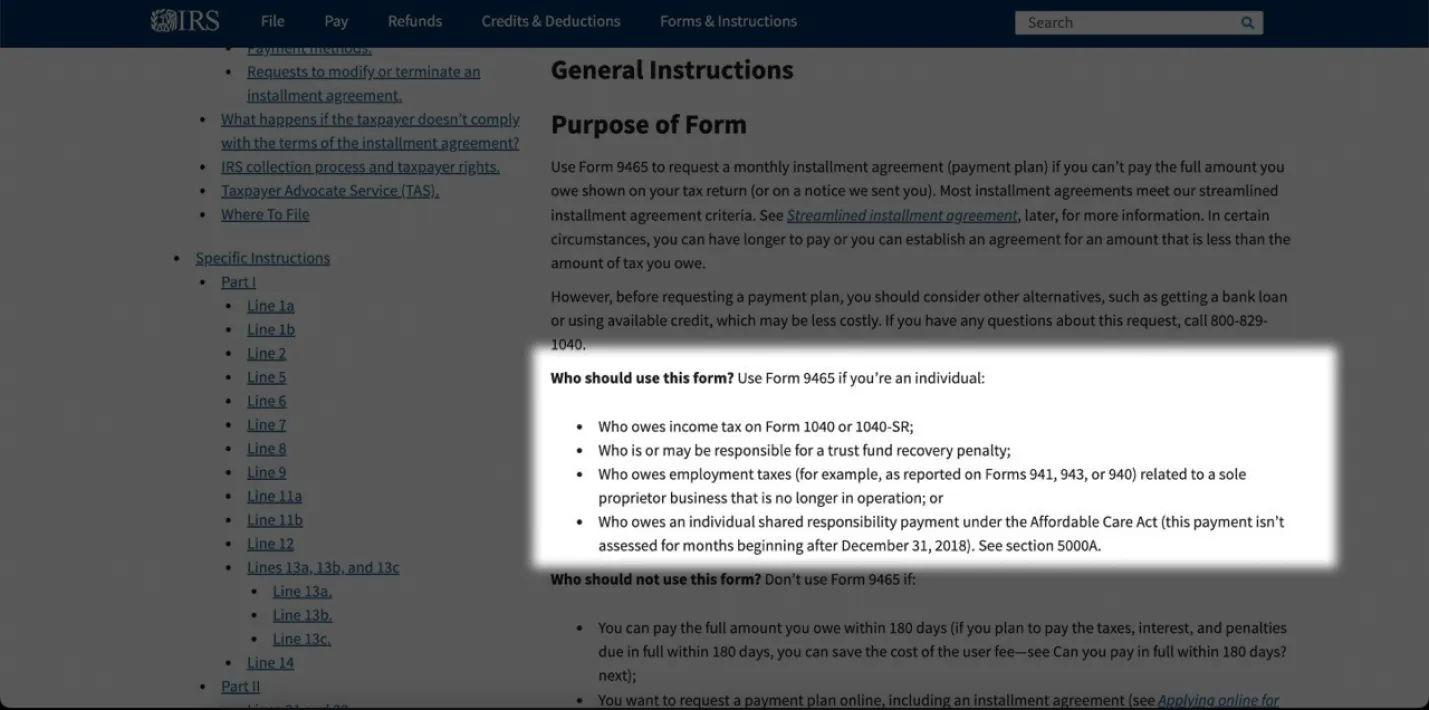
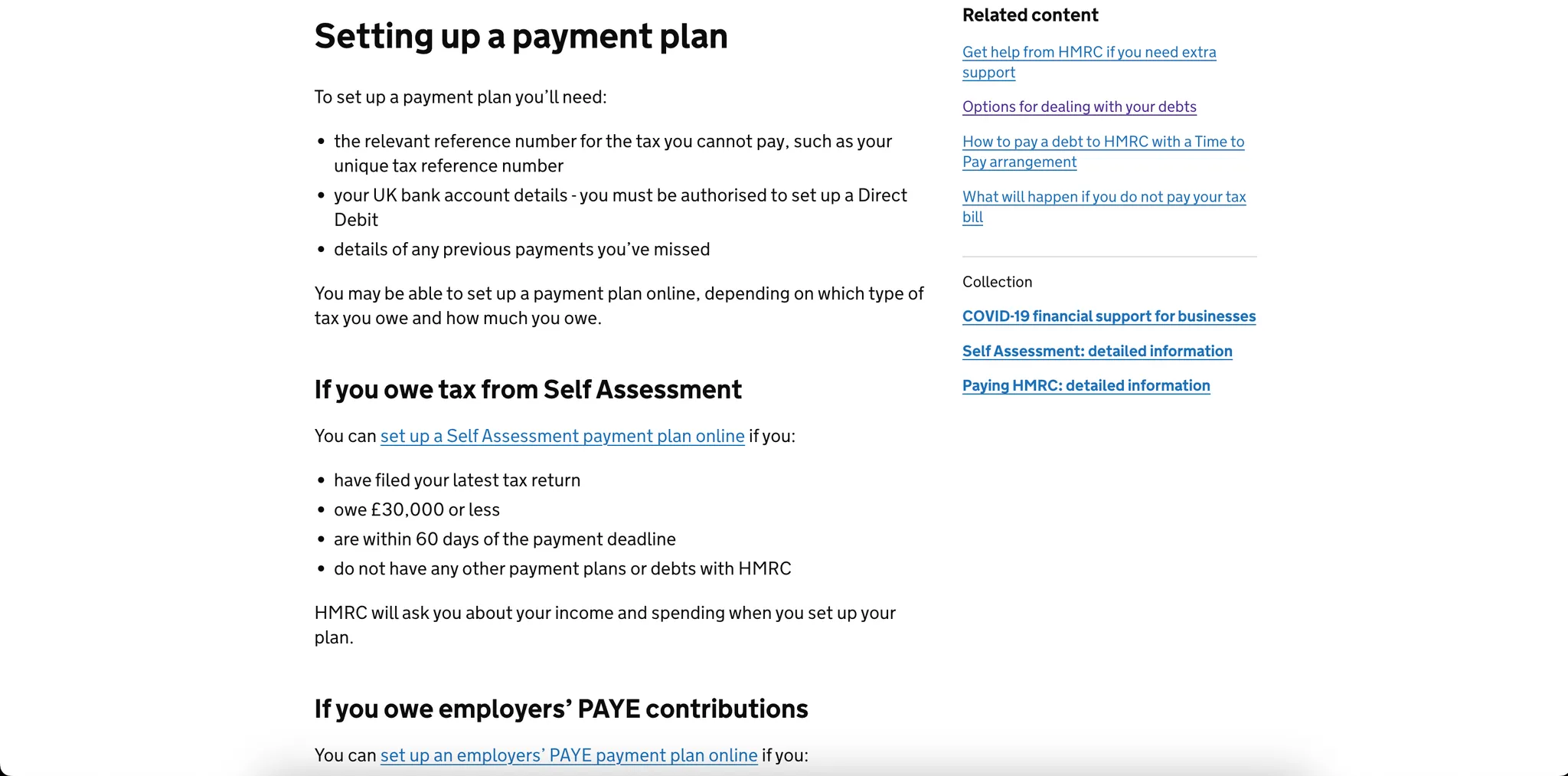
The page provides complex explanations filled with technical and legal terminology, making it challenging for users to understand the application rules. For instance, the "Who Should Use This Form?" section contains references to other forms and the Affordable Care Act, which adds excessive cognitive load. The heavy use of technical labels detracts from usability, making it difficult for users to understand their eligibility for an Installment Agreement.
* The Internal Revenue Service (IRS) is the revenue service for the United States federal government, which is responsible for collecting U.S. federal taxes.
*Installment Agreement on the IRS website refers to a payment plan that allows taxpayers to pay their tax debts in smaller, more manageable amounts over time, rather than paying the full balance all at once. This option is available for individuals or businesses who owe taxes but cannot afford to pay the full amount by the due date.


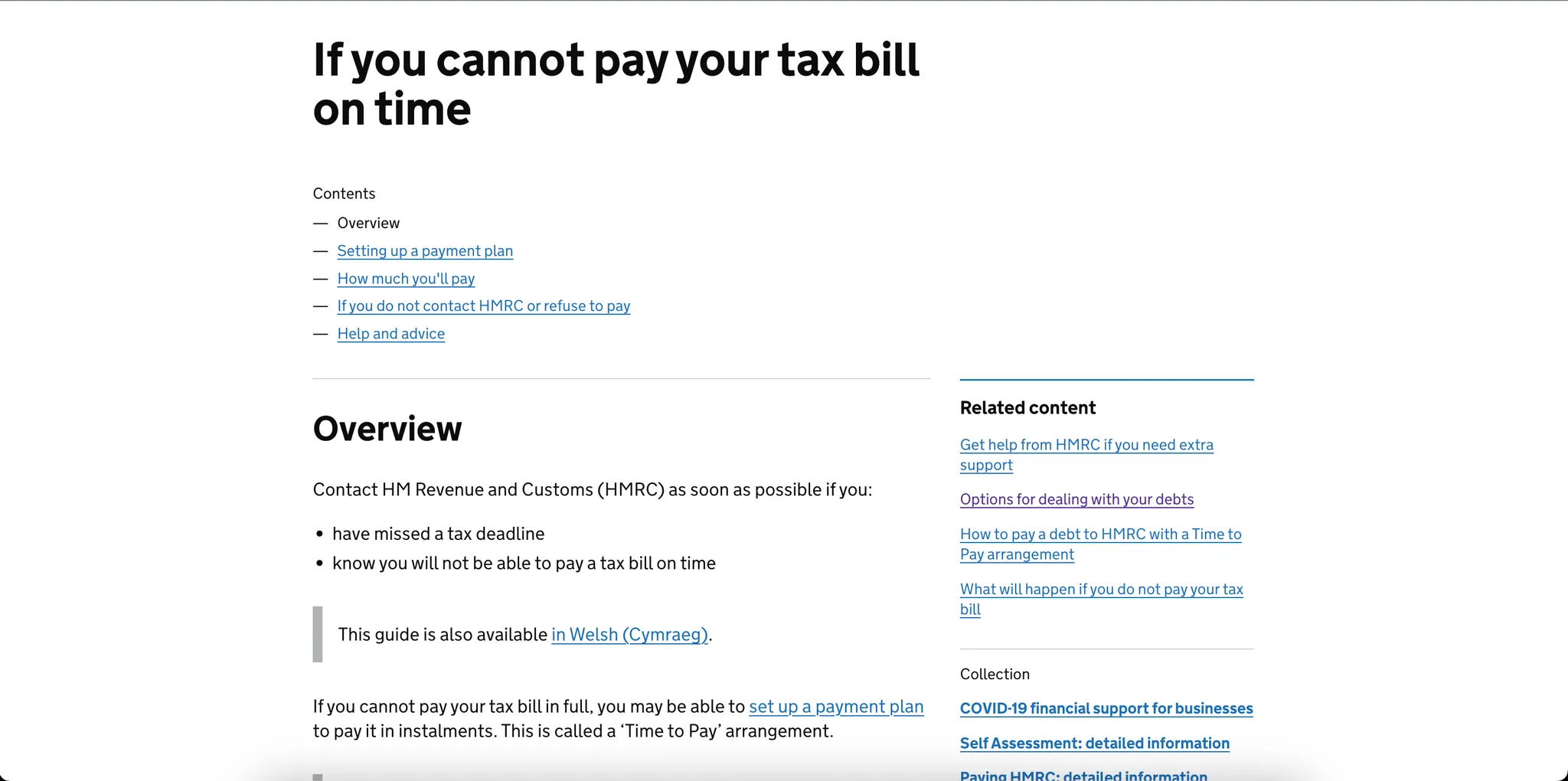
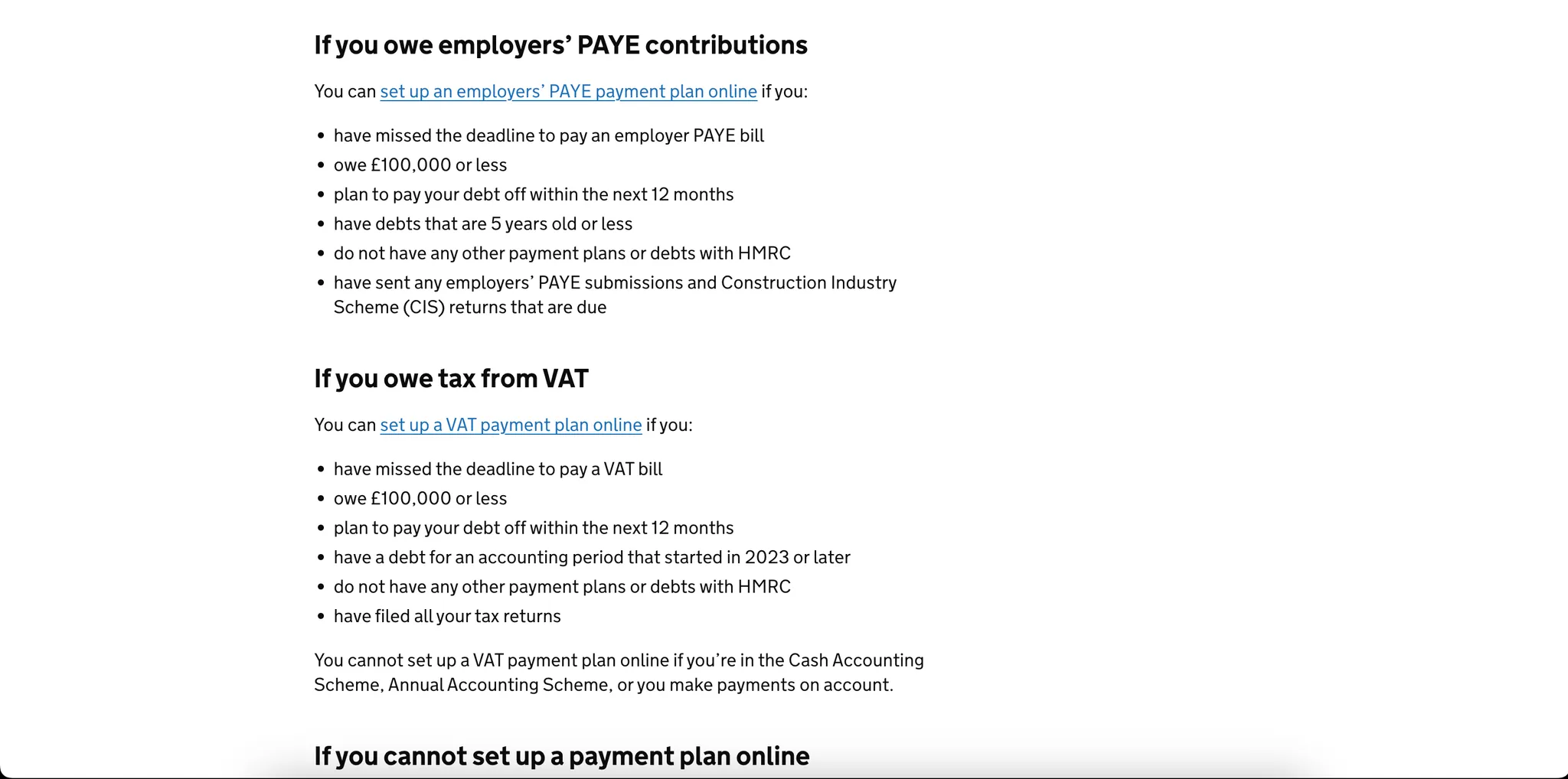
The GOV.UK website offers a more user-centered approach. When users need to set up a payment plan because they cannot pay their tax bill on time, the site presents clear and concise information. The page is organized with well-structured sections containing simple bullet points that outline the necessary steps, utilizing plain language that avoids references to other forms or complex legal terminology. This straightforward presentation helps users easily understand their options and the actions they need to take.


11.2. Long and vague explanations.
This issue arises when the system attempts to clarify a process or element, but the explanation is so long and detail-unspecific that it becomes unhelpful.
Unlike ambiguous phrases (11.3), which are typically embedded in the core interface language, vague explanations in 11.2 usually appear as complementary content, such as tooltips, help text, or footnotes. They are meant to assist, but do not succeed in doing so.
These explanations often:
These explanations fail to provide clear guidance and instead increase confusion and cognitive load for the user:
— “I still don’t know what I’m supposed to do.”
— “Why is this so complicated? Just tell me what to do.”

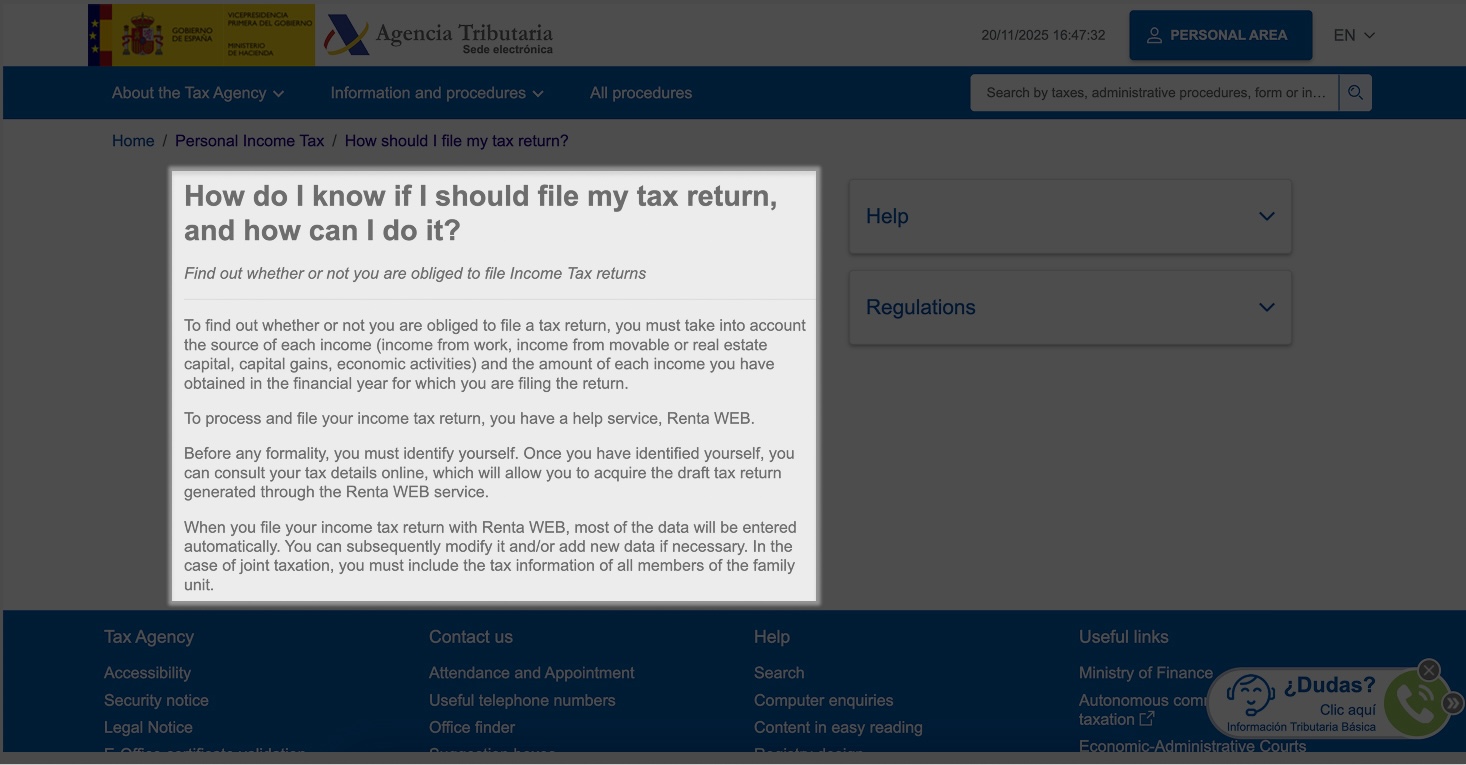
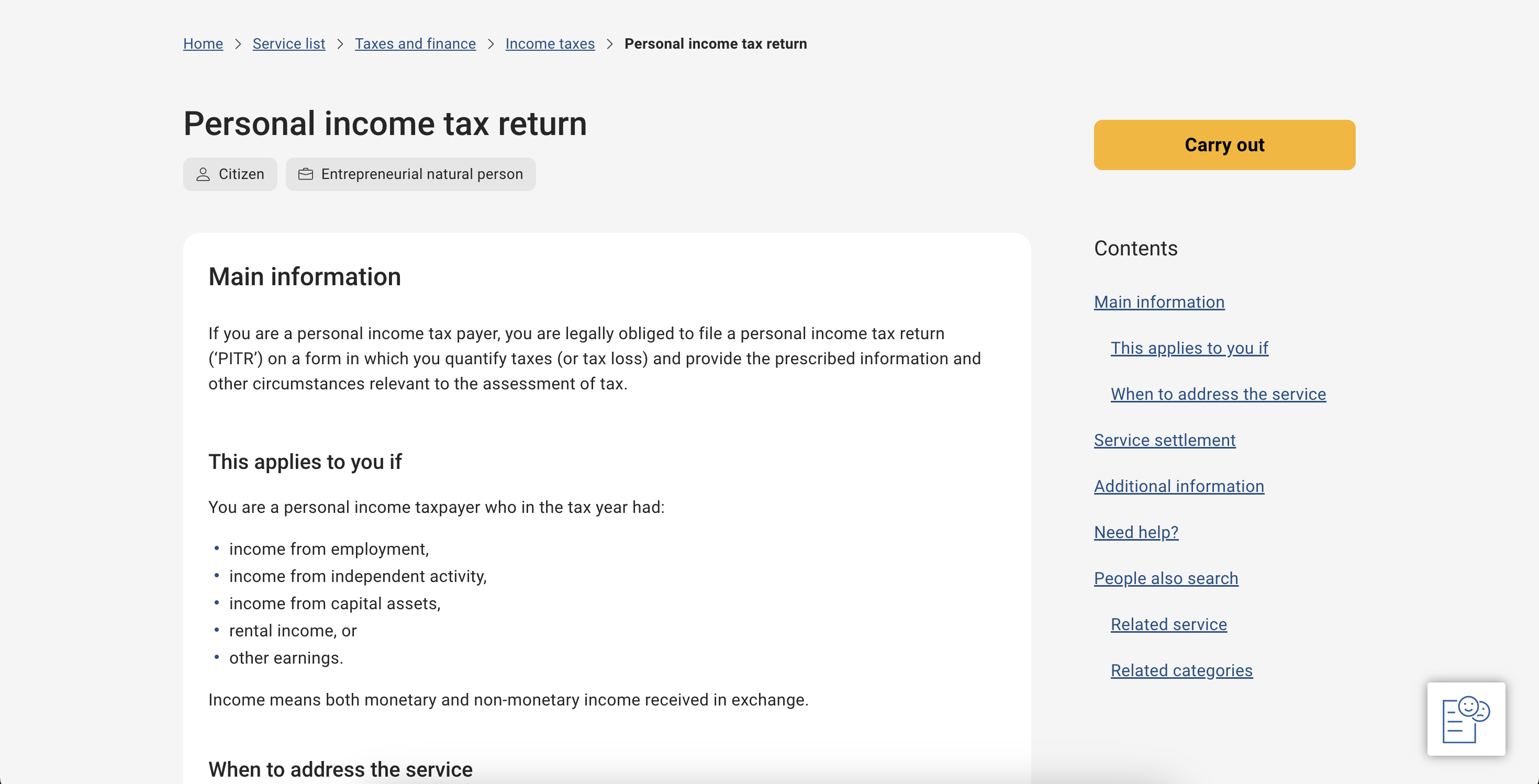
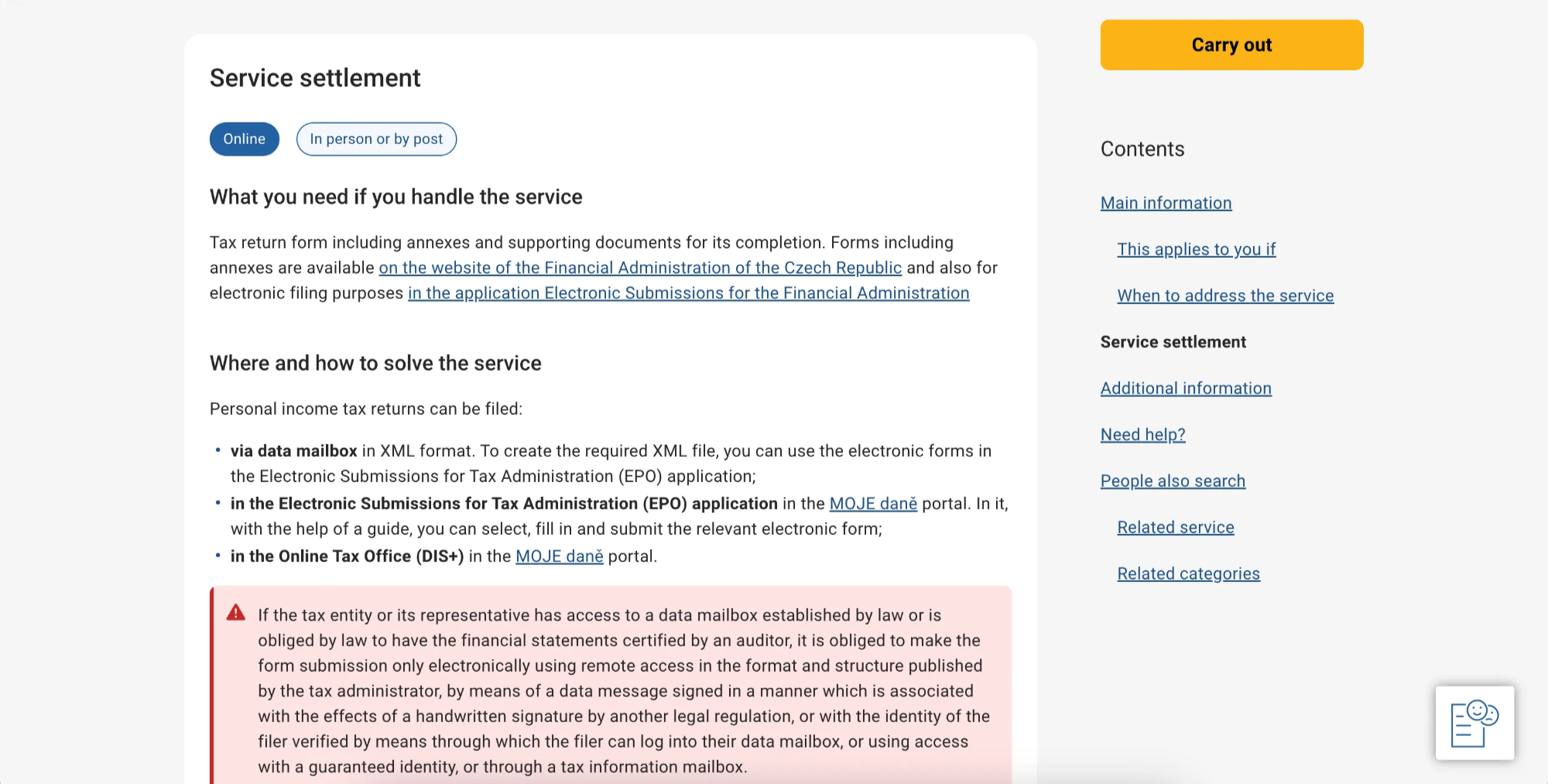
On the Czech government portal, gov.cz, users can access an article about personal income tax returns that presents the information in a clear and structured way. It outlines, in concise bullet points, the specific conditions under which individuals are required to file a tax return (e.g., having income from employment or rental activities during the tax year). The article then provides details on filing deadlines and clearly lists all available submission methods — both online and offline.


11.3. Ambiguous words or phrases that allow multiple interpretations.
This subclass covers cases where the wording of UI elements, usually labels, can be interpreted in multiple ways.
Unlike 11.2, in subclass 11.3 the language can appear short and clear, but the meaning is not specific enough, and may change depending on user assumptions or context.
These issues often arise from:
Users expect clear and predictable language that reflects real-world concepts. When this is missing, they may make incorrect assumptions.
This problem is commonly observed in financial services, where vague terminology can lead to mistaken decisions or task failure.
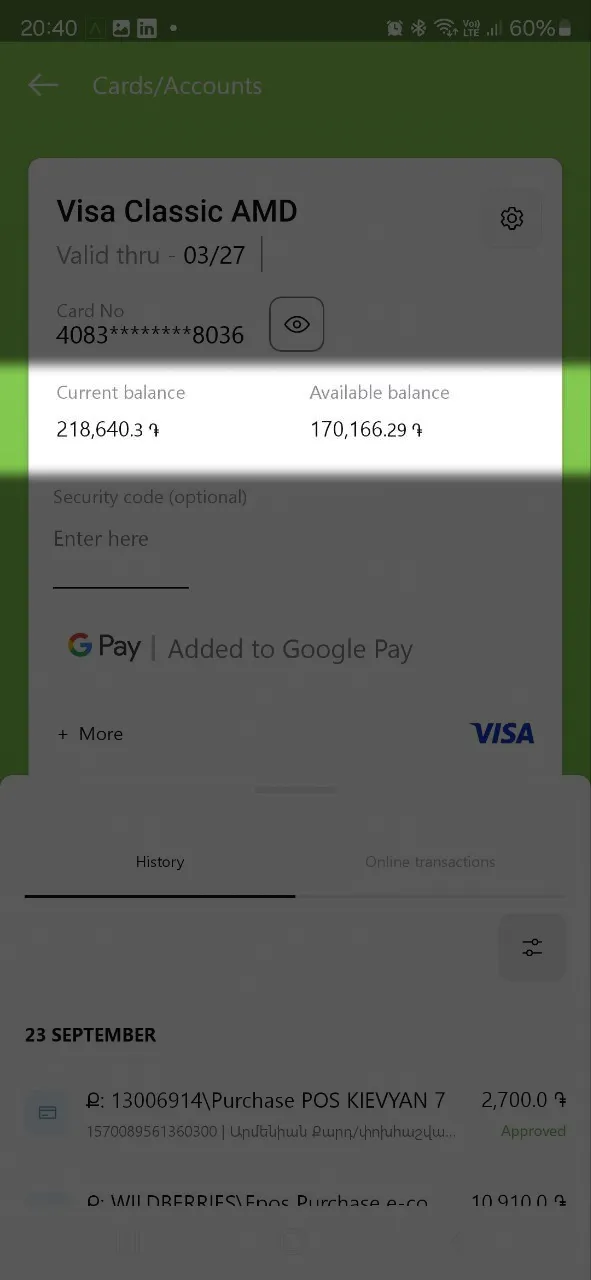
When the user navigates to the account screen, they see two different sections: ”Current balance” and “Available balance”. Without descriptive tooltips or explanations, the distinction is unclear. The service logic defines “Current balance” as the total account funds including reserved amounts from pending transactions, while “Available balance” reflects the spendable amount, which is precisely what user wants to know.
This ambiguity directly impacts the user by creating a risk of financial miscalculation. A user may mistakenly make spending decisions based on the higher "Current balance," potentially leading to failed payments.

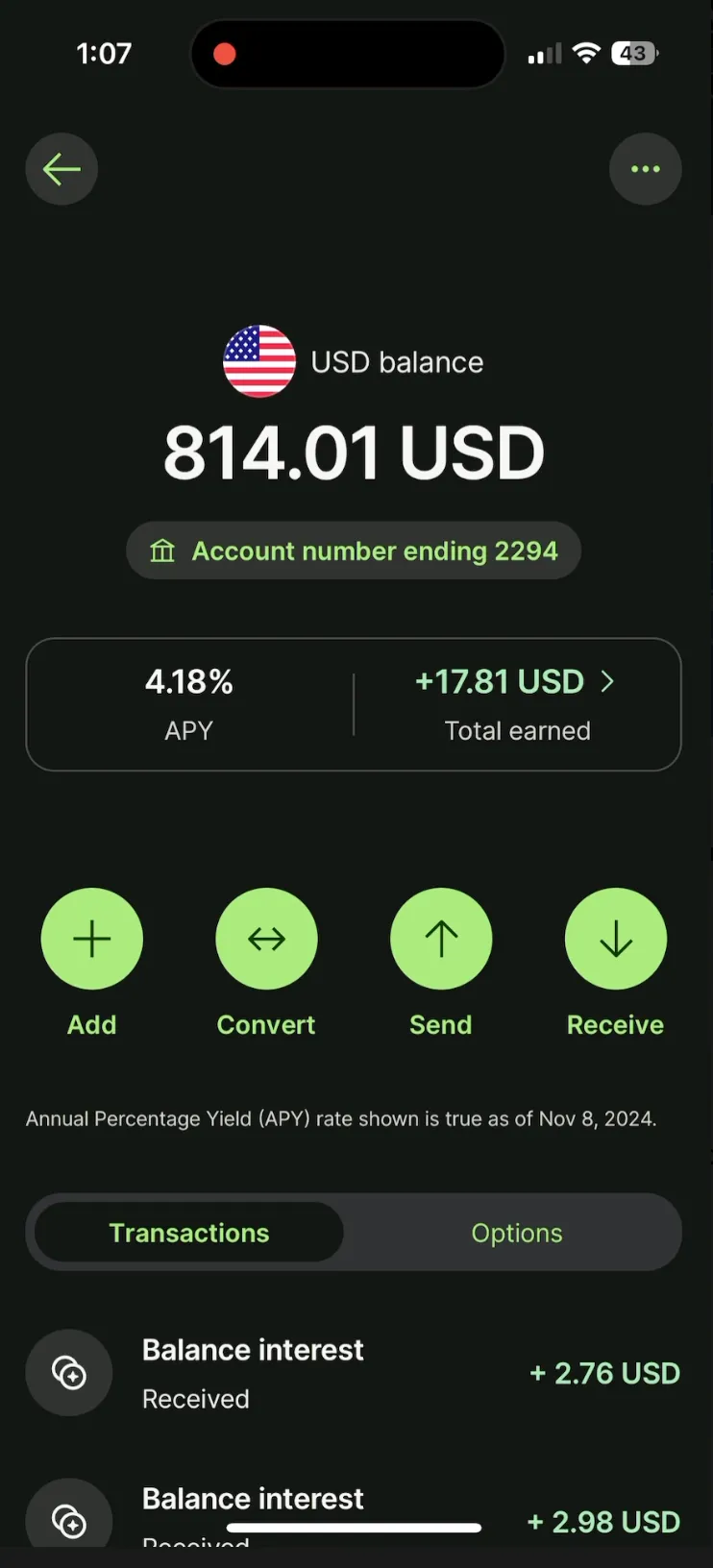
On Wise, users are presented with a single, clear balance amount on the account screen. This balance reflects the available funds that can be used, eliminating any confusion between different types of balances, such as “current” or “available”. By displaying only the spendable amount, Wise simplifies the user experience, ensuring that users can immediately see the funds they can use without the need for further explanations or distinctions.

11.4. Interface parts in a foreign language.
This subclass refers to situations where individual words, phrases, buttons, or entire interface sections appear in a language different from the one selected by the user.
A key design failure behind this problem is insufficient globalization or localization:
Issues are especially problematic in:
Users expect a seamless and fully localized experience once their preferred language is selected. When even isolated parts appear in another language, the service feels unfinished, careless, or untrustworthy.
On the Sparkasse app, after installation, users can set up their preferred language immediately on the first screen. After setting up the app, users are directed to the login screen, where they have the option to open a checking account if they don't already have one. The account opening process is fully accessible in English, ensuring a seamless experience for non-German speakers. The app provides a user-friendly interface that simplifies account setup and enhances accessibility for a broader audience.
Shopee (Use the app in English)
Notably, problems in this class are most commonly found in mobile versions of travel-related services. These interfaces often aim to present a large volume of information within the constraints of a small screen. As a result, they frequently sacrifice visual hierarchy, spacing, and clarity, leading to overcrowded layouts and an overwhelming visual experience.
12.1. Information and interface elements are too small or lack contrast.
This subclass includes situations where text, icons, or functional elements are too small to be comfortably seen or tapped, or where the contrast between foreground and background elements is too low. These issues are especially problematic on mobile devices where screen space is limited.
Screenshots


Best Practice
On the Zara Home website, users are prompted to select their country and language in a well-designed interface. The selection fields are placed on a white background, creating strong contrast that ensures the input areas and action buttons are easy to locate and interact with. The generous use of white space balances the vibrant, colorful image on the left side, preventing visual overwhelm and maintaining a clean, focused layout. This page successfully blends aesthetic appeal with usability, offering a visually engaging yet intuitive experience.

12.2. The interface is too bright or colorful.
This subclass refers to excessively saturated colors, bright backgrounds, or overuse of vivid accents that create a visually aggressive experience. Bright or overly stimulating interfaces can cause fatigue or discomfort, especially when used for extended periods or in low-light environments.
The website’s visually expressive design aligns with its artistic theme but creates significant usability challenges:
The result is a frustrating experience where the user struggles to find the necessary information and navigate through the site effectively.
Screenshot

Best Practice
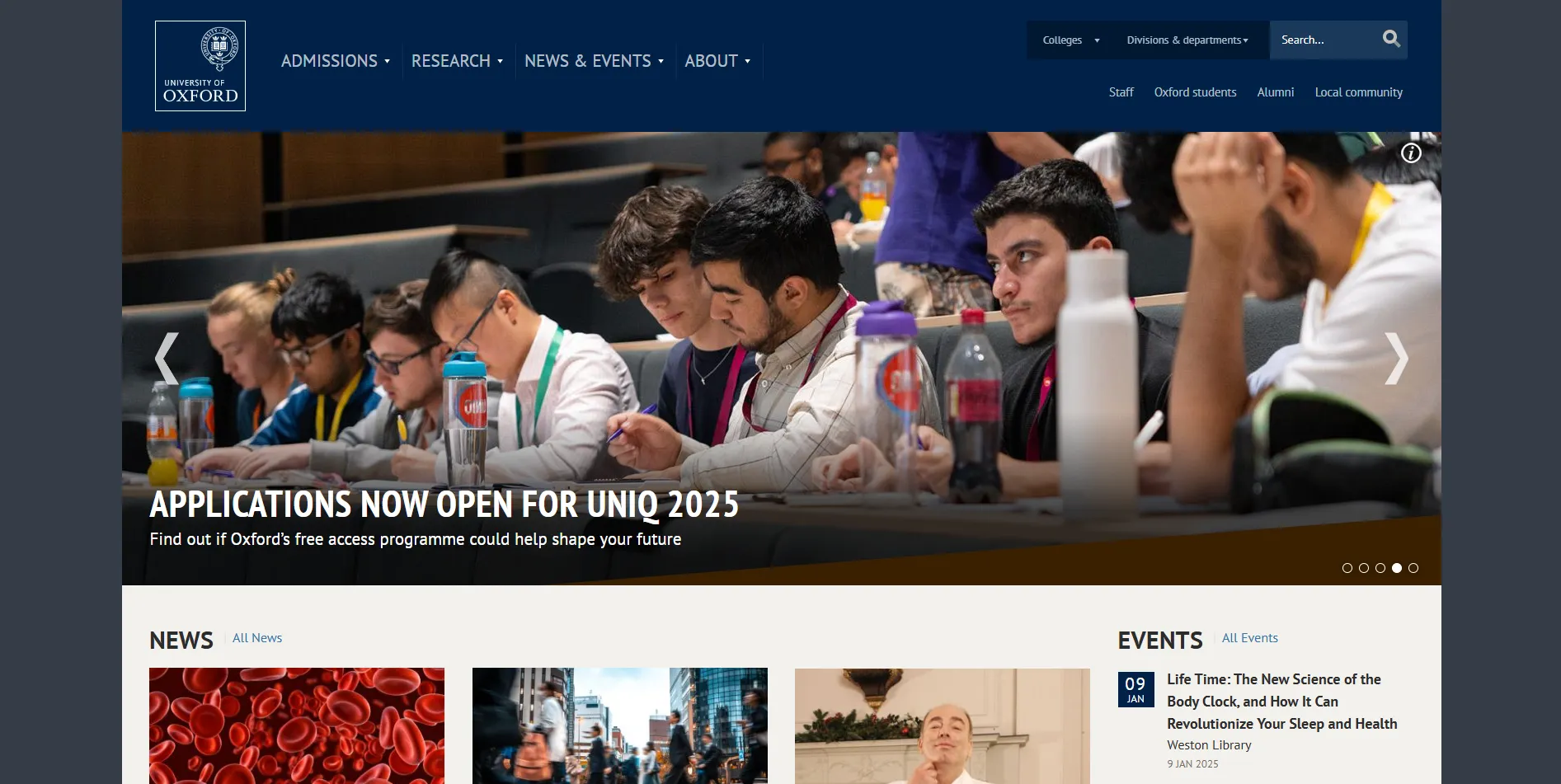
The University of Oxford website exemplifies a best practice for academic institutions by seamlessly combining a professional aesthetic with user-centric functionality. The website employs a modest and refined color scheme that enhances readability and keeps the user's focus on the content, rather than being distracted by excessive visual elements. The menu is thoughtfully structured, enabling users to quickly locate information without confusion. Clear categorization and logical hierarchies ensure seamless navigation. The layout avoids excessive white space, optimizing the screen real estate while maintaining a clean and professional appearance. This balance ensures that content is presented effectively without feeling cluttered.

12.3. The interface is cluttered with too many elements.
This subclass describes interfaces that overload the user with information, controls, and visual elements at once, making it difficult to focus or scan efficiently.
Common causes include:
Screenshots


Best Practice
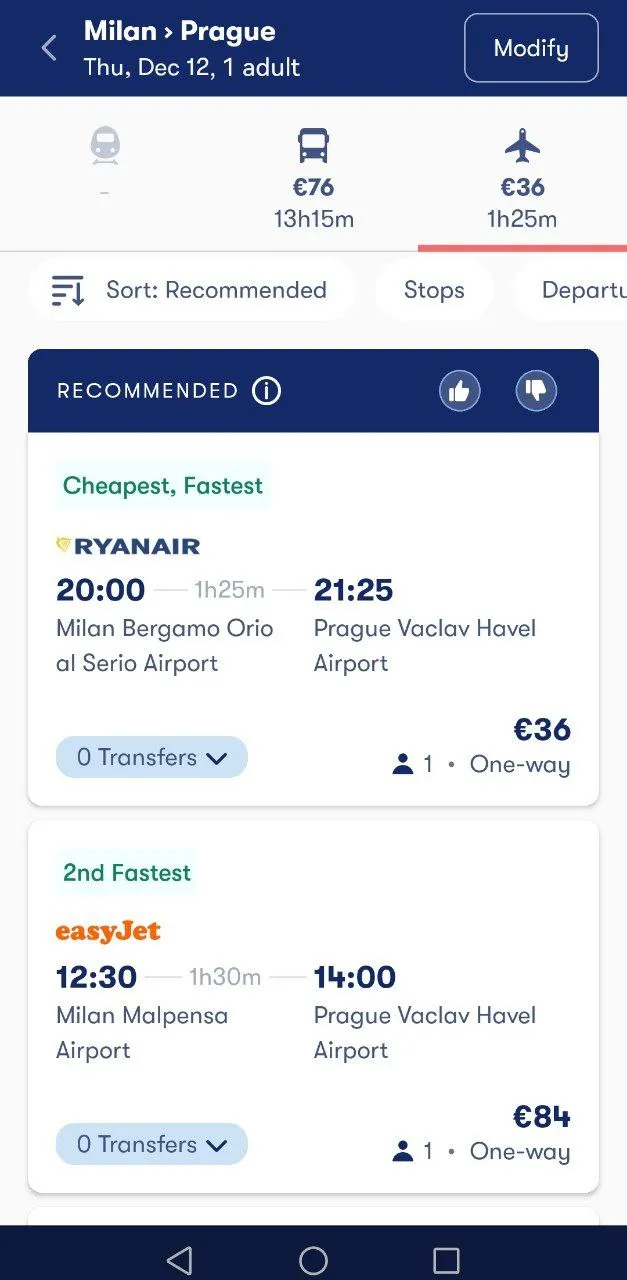
Omio's plane booking form is well-designed, using visual cues and accents to help users navigate and quickly grasp essential information. Despite the app's modest color palette, the contrast between blue and white establishes clear boundaries, enhancing readability, and a legible font guarantees eye comfort while using the app. The colorful airline logos add visual interest and brand recognition, while elements with greater visual weight — such as bright inscriptions like “2nd Cheapest” or “Fastest” — draw attention to the most suitable tickets, helping users quickly identify the best options.

12.4. The interface lacks visual cues and accents for a quick information retrieval.
This subclass applies when users cannot quickly locate key data or actionable elements because the interface lacks distinctive visual markers, grouping, or emphasis. Without visual guidance, users must scan the entire screen, which slows them down and strains their attention. Unlike 9.1 — where a single important element is poorly styled or positioned — here the problem lies in the absence of a coherent visual hierarchy across the whole interface.
Users are not searching for one specific item, but rather trying to make sense of the screen as a whole, and the lack of visual cues forces them to scan everything with extra effort:
— “I can’t tell what’s important here — it all looks the same.”
Common problems include:
The issue is often rooted in poor design system foundations — either because no visual hierarchy was defined, or because the service relies on a generic UI template not adapted to the content.
Screenshot

Best Practice
Omio's bus booking form is well-designed, using visual cues and accents to help users navigate and quickly grasp essential information. Despite the app's modest color palette, the contrast between blue and white establishes clear boundaries, enhancing readability. The colorful bus company logos add visual interest and brand recognition, while elements with greater visual weight — such as bright inscriptions like “2nd Cheapest” or “Fastest” — draw attention to the most suitable tickets, helping users quickly identify the best options. The search results can also be sorted by “Fastest”, further simplifying the process of finding the most convenient tickets.

Condor (Find the cheapest ticket)